Configurator Web
Configurator Web is the browser-based configuration application for Conversion Service. It edits the same configuration files as the Windows-based Conversion Service Configurator, so you configure Docker and Linux deployments without a Windows machine and without exporting configuration files.
Configurator Web runs on Docker and Linux. On Windows installations, use the Conversion Service Configurator instead. Refer to Set up using the Configurator.
Open Configurator Web
Configurator Web listens on port 13035.
- Docker
- Linux
Add the configurator-web service to your docker-compose.yaml, alongside conversion-service and connector-service, and share the configuration volumes between them. For the full configuration, refer to Run Conversion Service in Docker.
After the containers start, browse to http://localhost:13035.
conversion-serviceConfigurator Web resolves Conversion Service under the Docker Compose service name conversion-service. If you rename that service, Configurator Web can’t report its health or run Playground conversions.
The Linux packages install Configurator Web as a systemd unit. The packages enable the unit at installation but don’t start it, so start it once:
sudo systemctl start pdftools-configurator-web
After the unit starts, browse to http://localhost:13035. For the installation steps, refer to Conversion Service on Linux.
Restrict access
Configurator Web has no sign-in. Anyone who can reach port 13035 can view and change the configuration of Conversion Service and the Connector Service, so don’t expose the port to an untrusted network.
- Docker
- Linux
The Docker Compose examples publish port 13035 on 127.0.0.1 only, so Configurator Web accepts connections only from the Docker host:
        configurator-web:
            ports:
                - "127.0.0.1:13035:13035"
The systemd unit accepts connections on every network interface. To accept connections only from the local machine, open an override file for the unit:
sudo systemctl edit pdftools-configurator-web
Add the following lines, save the file, and then restart the unit with sudo systemctl restart pdftools-configurator-web:
[Service]
Environment=ASPNETCORE_URLS=http://127.0.0.1:13035
To open Configurator Web from another machine, forward the port over SSH, and then browse to http://localhost:13035 on that machine:
ssh -L 13035:localhost:13035 USER@HOST
Replace the following placeholders with specific values:
USER: Your user name on the machine that runs Configurator Web.HOST: The host name or IP address of that machine.
What you can configure
The navigation contains the following pages:
- Health & Activity: Whether Conversion Service is running.
- Settings: Service-wide settings, such as the proxy and Microsoft Office conversion. Refer to Convert Microsoft Office files.
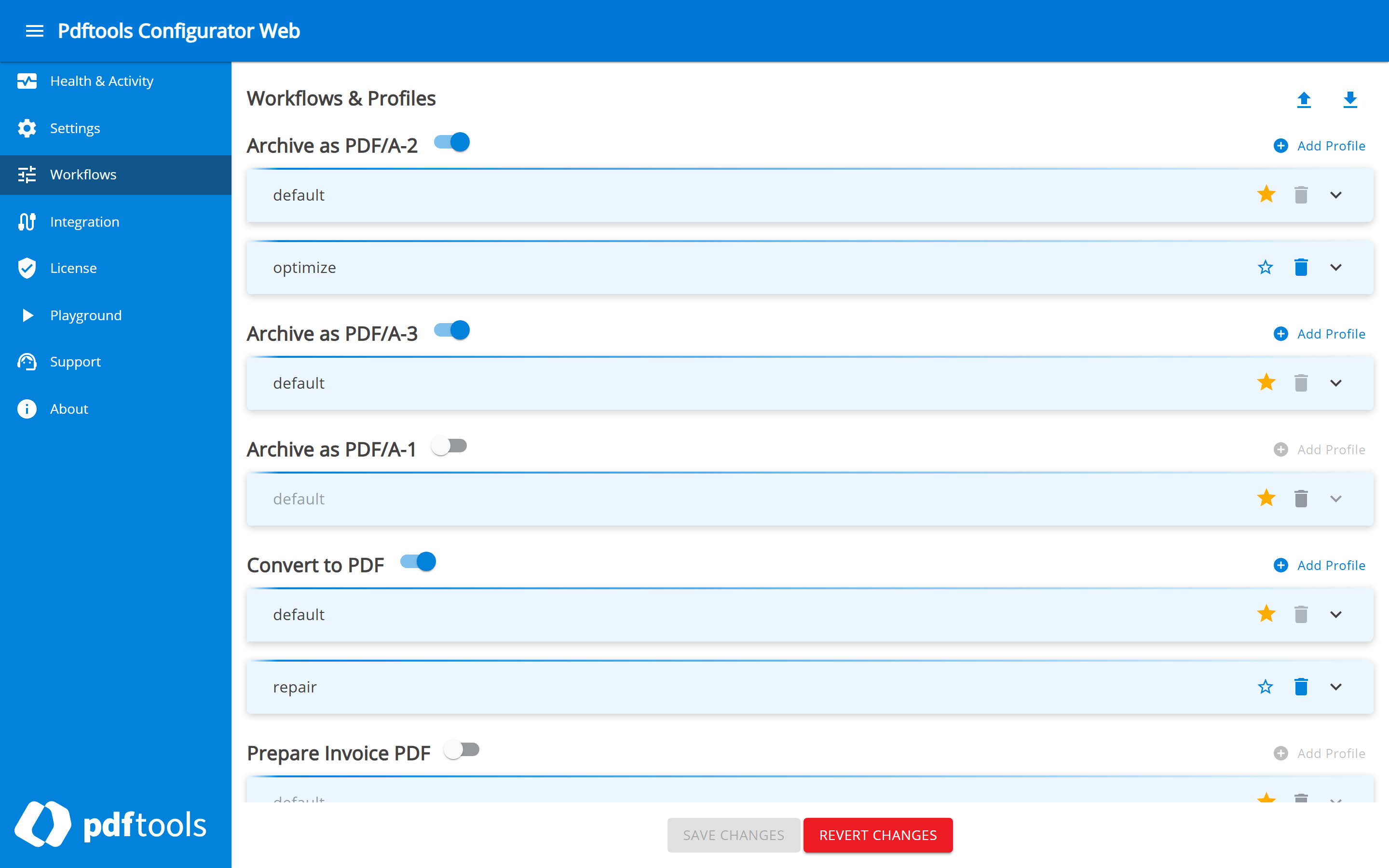
- Workflows: Workflows and their profiles, including processing steps such as stamps, OCR, and digital signatures. Profile import and export are available from the same page. Refer to Configure profiles in Docker.
- Integration: Input and output connections, such as watched folders, email, and REST. Refer to Connectors.
- License: Link to the Pdftools Portal, where you manage your licenses. Refer to Conversion Service licensing.
- Playground: Test conversions in the browser, without setting up a connector. Refer to Playground.
- Support: Support bundle for troubleshooting.
- About: Product version and links to the license agreement, documentation, and support.
On Workflows, each workflow carries a toggle and its list of profiles. Save Changes and Revert Changes apply to the whole page:
Integration lists the input and output connections that the Connector Service runs:
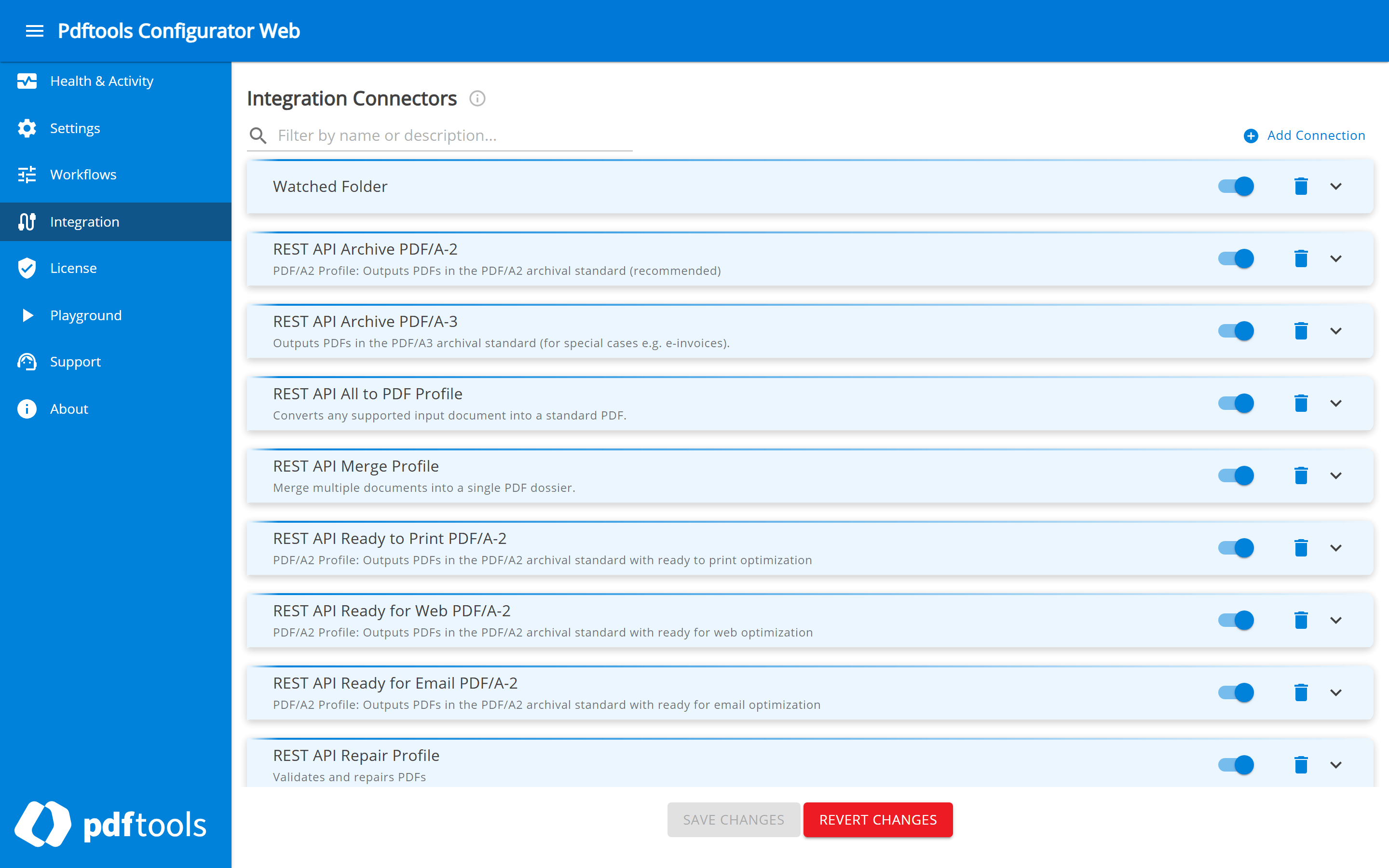
Configurator Web reads the connection configuration that the Connector Service creates. In Docker, run the connector-service container and share its configuration volume with Configurator Web. Otherwise, the Integration page fails to load.
Apply changes
Configurator Web writes to the configuration files, but the running services read their configuration at startup. To apply a change, follow these steps:
-
Click Save Changes before you open another page. Configurator Web discards unsaved changes without a warning.
A banner reports which service to restart.
-
Restart that service:
- Docker
- Linux
docker compose restart conversion-servicesudo systemctl restart pdftools-conversion-service
For changes to connections, restart the Connector Service instead: connector-service in Docker and pdftools-connector-service on Linux.
Logs
Configurator Web writes its log to the console output. To read it, run the command for your deployment:
- Docker:
docker compose logs configurator-web. In a container, Configurator Web doesn’t write a log file. - Linux:
journalctl -u pdftools-configurator-web.
For the logs of Conversion Service and the Connector Service, refer to Service log.