Conversion Service on Linux
Learn how to install and configure Conversion Service on Linux from a DEB or RPM package, set up licensing, and then run it as a systemd service.
Trial license
Conversion Service 6.12 and later automatically registers a built-in trial license on every fresh installation, on Windows, in Docker, and on Linux. The service starts fully licensed, so you don’t need a license key to try Conversion Service. The trial license adds a watermark to converted files and doesn’t expire.
In the Conversion Service Configurator, the trial license appears as TRIAL-LICENSE in the Key field on the License tab.
In Docker, the container registers the trial license only when you don’t pass a license key with the LICENSEKEY or LICENSEKEY_FILE environment variable.
To convert files without a watermark, replace the trial license with a full license key.
Request full license
The built-in trial license lets you try Conversion Service at no cost. To convert files without a watermark, request a full license key.
To request a full license key, follow these steps:
- Sign up or log in to the Pdftools Portal.
- On the Products page, next to the Conversion Service, click Request license.
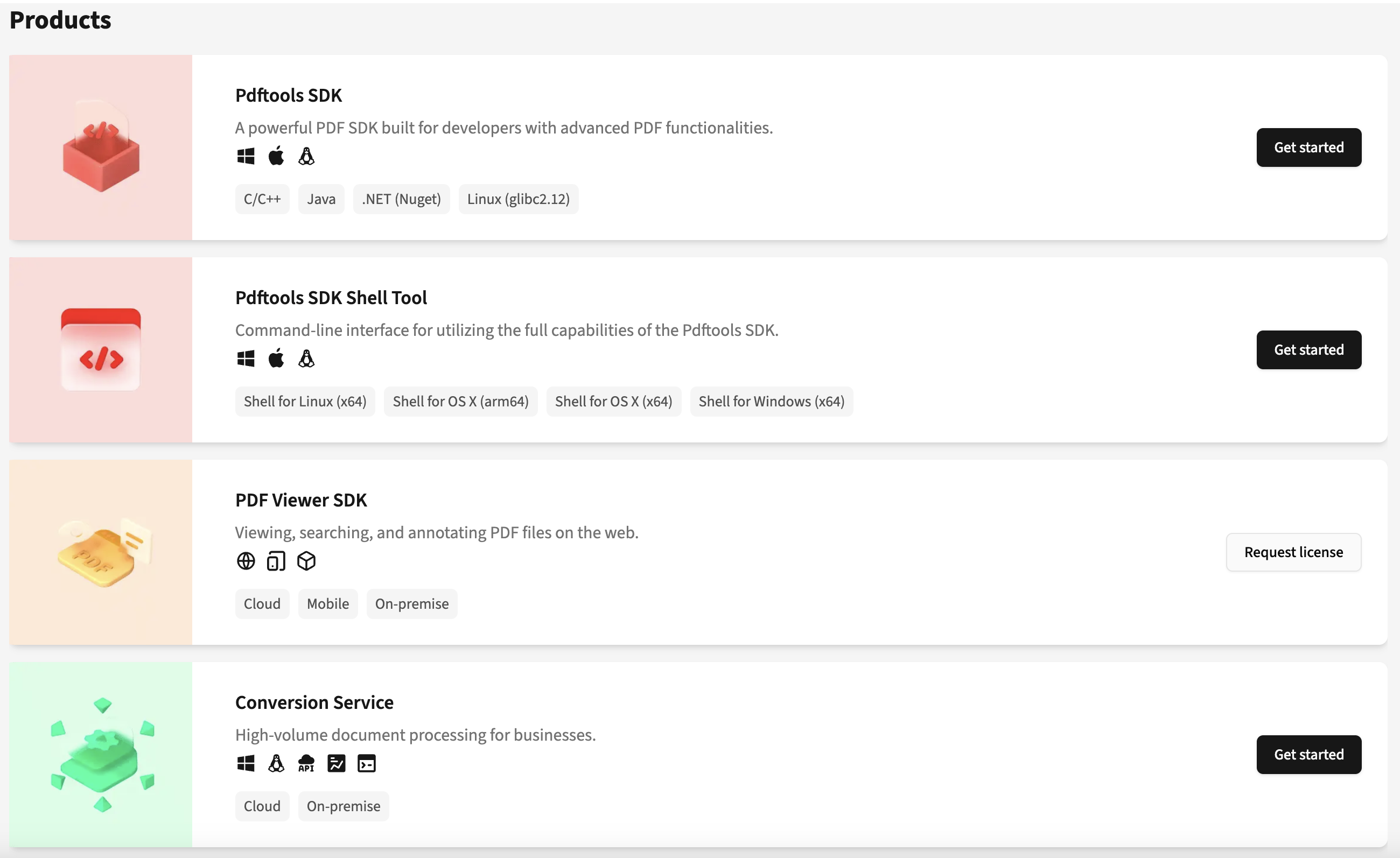
- On the Contact us window, fill in the requested fields, and then click Submit.
After you receive your full license key, replace the trial license with it. For more details, review Add or remove a license key.
Prerequisites
- A supported Linux distribution. Refer to the Linux subsection of the Compatible operating systems.
- The Conversion Service Linux package for your distribution. Refer to Download the package.
- Optional: A Conversion Service license key. Without a license key, the service runs with the built-in trial license. To use a full license key, install the License Gateway Service (LGS). Refer to Set up licensing.
- Install the ASP.NET Core Runtime 8.0 on the host. Conversion Service is a framework-dependent .NET application and uses the host’s .NET runtime. Refer to Install the .NET runtime.
- On RHEL, Rocky, AlmaLinux, and Oracle Linux (version 10+): Enable the Extra Packages for Enterprise Linux (EPEL) repository. Refer to Install Conversion Service.
Download the package
To download the Conversion Service Linux package, follow these steps:
-
Log in to the Pdftools Portal.
-
On the Products page, next to Conversion Service, click Get started or See product.
-
In the Product builds section, find the package for your distribution, and then click Download:
- DEB (Debian, Ubuntu):
pdftools-conversion-service_VERSION_NUMBER_amd64.deb - RPM (RHEL, Rocky, AlmaLinux, and Oracle Linux):
pdftools-conversion-service-VERSION_NUMBER-1.x86_64.rpm
The exact filename, for example
pdftools-conversion-service_6.12.0.12345_amd64.deb, depends on the version you install. - DEB (Debian, Ubuntu):
Install Conversion Service
Use the package format for your distribution, either DEB or RPM. The installation creates two system users that can’t log in:
convsrv: Runs Conversion Service and Configurator Web.connsrv: Runs the Connector Service. It registers the systemd units but doesn’t start the services.
Install the .NET runtime
Conversion Service is a framework-dependent .NET application: it uses the ASP.NET Core Runtime 8.0 installed on the host rather than bundling its own. Install it before the package. If your package manager can’t find aspnetcore-runtime-8.0, add Microsoft’s package repository for .NET first. For more information, see Install .NET on Windows, Linux, and macOS in Microsoft documentation.
- Debian, Ubuntu:
sudo apt-get install -y aspnetcore-runtime-8.0 - RHEL, Rocky, AlmaLinux, Oracle Linux:
sudo dnf install -y aspnetcore-runtime-8.0
Confirm it’s available with dotnet --list-runtimes. The output should include a Microsoft.AspNetCore.App 8.x entry. If it’s missing, the package’s post-install step prints a warning and the services won’t start until you install it.
DEB package
To install the DEB package:
- Install the package from the downloaded file:
Replacesudo apt install ./pdftools-conversion-service_VERSION_NUMBER_amd64.deb
VERSION_NUMBERwith the version of the package you downloaded (for example,6.12.0.12345).
The DEB package isn’t GPG-signed. apt doesn’t require a signature for local-file installs, so no extra flag is needed.
RPM package
The RPM package depends on libheif, libbsd, libunwind, and libXScrnSaver, which come from the EPEL repository. To install the RPM package, follow these steps:
- Enable the EPEL repository:
sudo dnf install -y epel-release
- Install the package from the downloaded file:
Replacesudo dnf install ./pdftools-conversion-service-VERSION_NUMBER-1.x86_64.rpm
VERSION_NUMBERwith the version of the package you downloaded (for example,6.12.0.12345).
On hosts with gpgcheck=1 enabled (the default on RHEL-family distributions), the install refuses because the package isn’t GPG-signed. Pass --nogpgcheck to bypass the check:
sudo dnf install --nogpgcheck ./pdftools-conversion-service-VERSION_NUMBER-1.x86_64.rpm
Set up licensing
Fresh installations register the built-in trial license, so you don’t need a license key to try Conversion Service. Converted files contain a watermark.
To convert files without a watermark, replace the trial license with a full license key. On Linux, the service validates full license keys through the License Gateway Service (LGS), which you install as a separate snap package. For the exact steps, review Add or remove a license key on Linux in Pdftools licensing documentation.
Start the services and verify
To start Conversion Service and confirm it’s healthy, follow these steps:
- Start the virtual X display, Conversion Service, and the Connector Service:
The install enables all units for boot-time start automatically.sudo systemctl start pdftools-xvfb pdftools-conversion-service pdftools-connector-service
- Check the health endpoint:
A successful response confirms that Conversion Service is running. A connection error or HTTP 500 indicates a configuration problem. Refer to Troubleshooting.curl -fsS http://localhost:13033/conversion/v1.0/rest
- Optional: Start Configurator Web:
Configurator Web is enabled at install and starts on the next boot, but it isn’t started during install. After it starts, opensudo systemctl start pdftools-configurator-web
http://localhost:13035in a browser. To opt out of boot-time start, runsudo systemctl disable pdftools-configurator-web.
Uninstall
Remove Conversion Service with the command for your package format:
- DEB:
sudo apt remove pdftools-conversion-service. To also remove the configuration files, usesudo apt purge pdftools-conversion-serviceinstead. - RPM:
sudo dnf remove pdftools-conversion-service.
The uninstall removes the binaries under /opt/pdftools/ and the systemd units. By Linux packaging convention, the convsrv and connsrv system users persist, along with your data under /var/lib/convsrv/ (Conversion Service database) and /var/lib/connsrv/ (Connector Service watched-folder root). Remove the License Gateway Service snap separately with sudo snap remove licgwy.
Next steps
You installed Conversion Service on Linux, set up licensing, and verified that it’s running. Review the following documentation to configure and integrate it:
- For service control, ports, and the locations of the data and temporary directories, refer to Manage service on Linux.
- For troubleshooting steps, refer to Troubleshooting.
- Adapt the default profile or create a new profile for a workflow.
- Create a new workflow.
Integrate Conversion Service into your system in several ways: