Configure connections
Integrate the Conversion Service into your environment by connecting input sources (for example a watched folder) to output destinations (for example an output folder) and configure how documents will be processed. To achieve this configure a connection using the Conversion Service Configurator, which is installed with the Conversion Service.
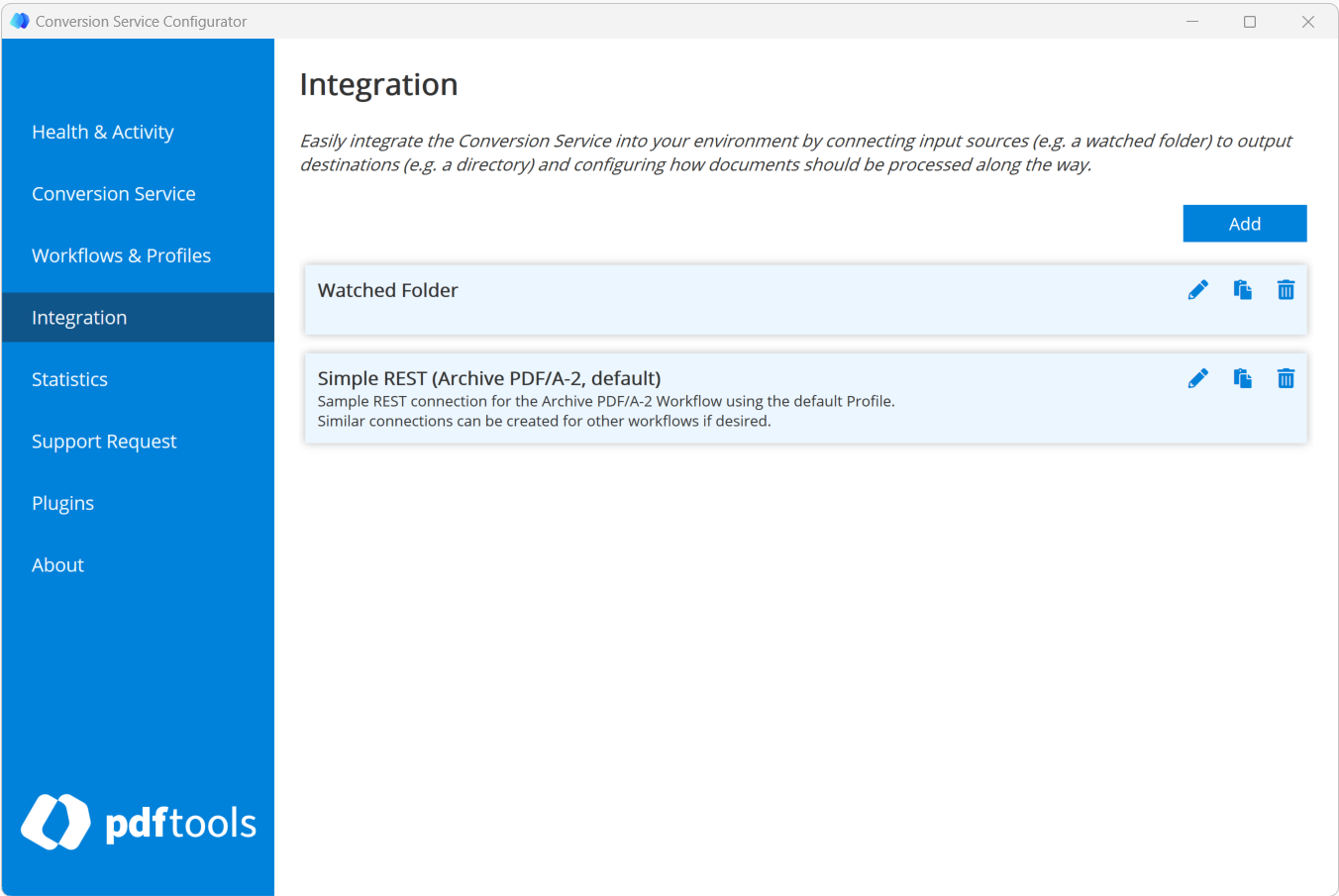
Set up a connection
A connection defines how the Conversion Service is integrated into an existing system. Each connection requires input and output connectors. To add and configure a new connection click the Add Connection button.
To edit or delete an existing connection, click the respective icon. To copy an existing connection, click the Copy icon.
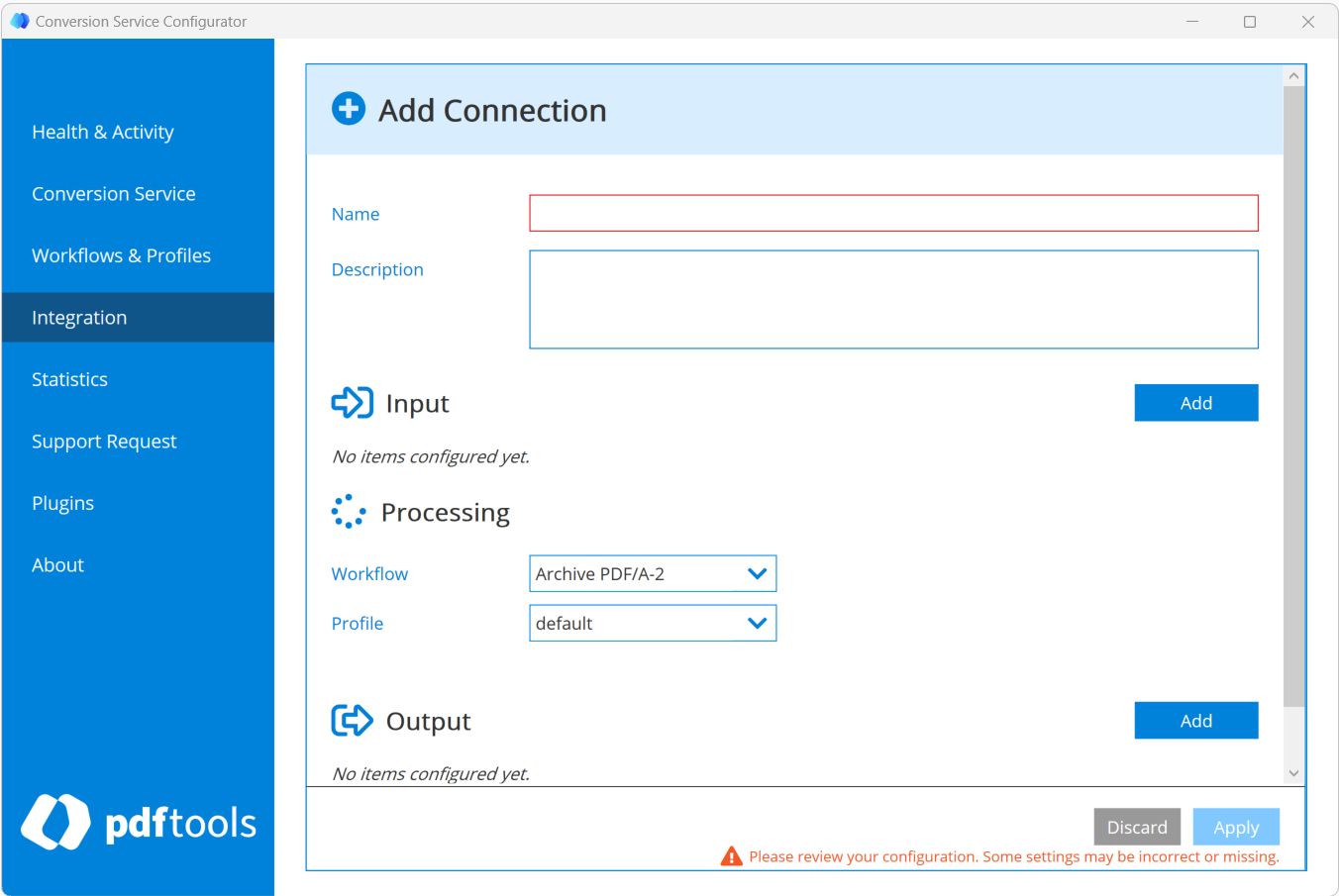
- Name (required): Enter a connection name.
- Description (optional): Enter a connection description.
- Input(s) (required): Configure an input connector by clicking Add.
- Processing (required): Select the workflow and profile for the conversion.
- Output(s) (required): Configure an output connector by clicking Add.
Add a connector
Each connection requires at least one input connector and one output connector. You add them in the connection editor described in Set up a connection. After you select a connector, click Next to confirm the selection and configure its options, as described in Configure connectors.
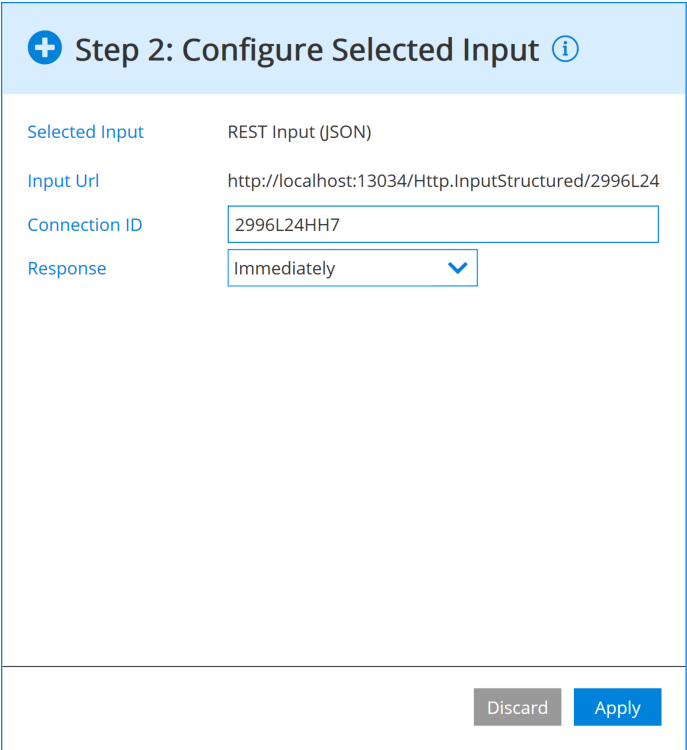
The following sections list the available input and output connectors.
Input connectors
Input connectors define where Conversion Service receives documents. Click Add in the Input(s) section, then select one of the following:
- REST input JSON: Convert files sent in the request body in JSON format, either as a single file or multiple files.
- REST input plain HTTP: Convert files sent in the request body in HTTP format, either as a single file or multiple files.
- Watched Folder: Convert all files placed into a configurable input directory.
- Watched Mailbox (Exchange Online): Convert all emails placed into a configurable Microsoft Exchange Online mailbox.
- Watched Mailbox (IMAP): Convert all emails placed into a configurable IMAP mailbox.
Output connectors
Output connectors define where Conversion Service sends processed documents. Click Add in the Output(s) section, then select one of the following:
- Create Text file: Create a text file with additional information.
- Execute Command: Execute a configurable command with arguments on the files.
- Output Folder: Copy files into a configurable output directory.
- Output Mailbox (Exchange Online): Copy files to a configurable mailbox on a Microsoft Exchange Online server.
- Output Mailbox (IMAP): Copy files to a configurable mailbox on an IMAP server.
- REST Output: Post files as a multipart/form-data request to a configurable output URL.
- Send Email (Exchange Online): Send an email to a configurable recipient using a Microsoft Exchange Online server.
- Send Email (SMTP): Send an email to a configurable recipient using an SMTP server.
Configure connectors
Set options for the selected connector. A summary for each option is documented with tooltips. For a detailed explanation of the connector, click the title to open the documentation panel.
You must restart the Conversion Service for any configuration changes to take effect.
When you add or edit connections, the Configurator detects changes and displays an unobtrusive notification. For your convenience, your changes are kept in memory until you click Save & Restart Service.
Configure connectors in Docker
To configure connectors in Docker:
- Use the Configurator UI to add connections and input or output connectors as described in the previous sections.
- The changes are storred in the
Connections.xmlfile in the installation folder. - Map the file from the host to
/etc/connsrv/Connections.xmlin the container. - Set the
IMPORT_CONNECTIONSenvironment variable to the mapped path.
Example Docker Compose configuration:
connector-service:
  image: pdftoolsag/connector-service:${IMAGE_VERSION}
  volumes:
    - ./Connections.xml:/etc/connsrv/Connections.xml
  environment:
    - IMPORT_CONNECTIONS=/etc/connsrv/Connections.xml
This imports and applies the Connections.xml configuration to the Connector Service on startup.