Configure profiles
A profile is a structured, workflow-specific set of configuration settings. Each workflow can have an arbitrary number of profiles, which you can select when running the service.
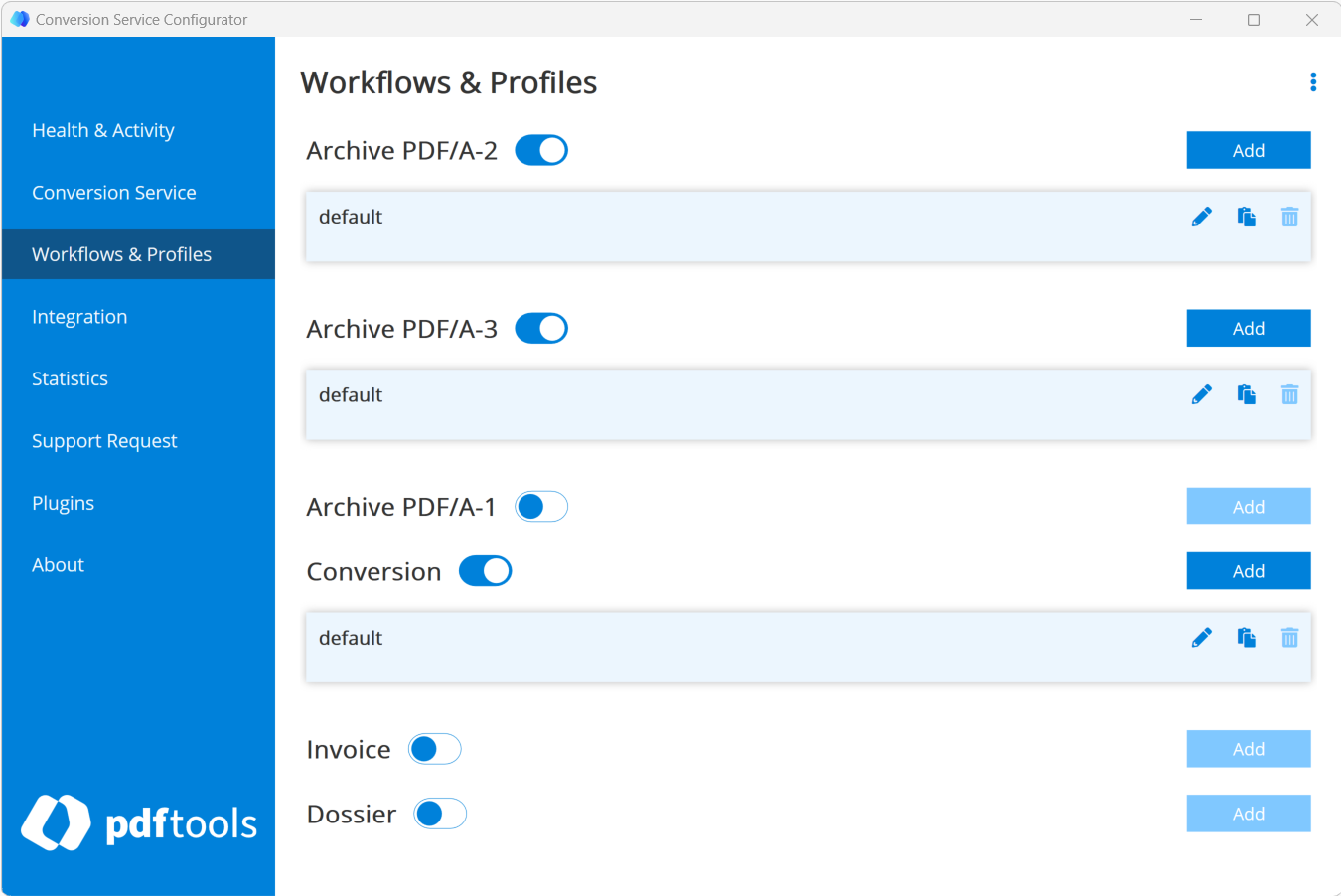
Profiles are managed using the Conversion Service Configurator in the Workflows & Profiles tab. The Configurator is added to the Windows start menu during installation.
If you are using the Conversion Service in a Docker container, you need to create a profile using a Windows installation before exporting and importing it into the Docker container.
Adding and editing profiles
In the Workflows & Profiles tab, click Add to add and configure a new profile. To edit an existing profile, click it. To copy an existing profile, click the Copy icon.
Compression and optimization settings
When you enable the Compression and Optimization processing step, a Compression and Optimization section appears in the profile settings. The section lets you pick an optimization profile (Web, Print, Max, MRC, or Archive) and includes the following toggles:
- Flatten Annotations: Removes annotations (notes, highlights, comments, and other markup) during optimization. Enable this toggle when annotations must not appear in the optimized output.
- Flatten Form Fields: Flattens AcroForm fields into static graphics so that filled-in form values render consistently across PDF viewers. Enable this toggle to preserve the visual appearance of form values when the fields themselves no longer need to be editable. The runtime job option is
FLATTEN.FORM.FIELDS. - Keep Metadata: Preserves document metadata (Title, Author, Subject, Keywords, and custom XMP) during optimization. By default, the Archive and Max profiles strip metadata; enable this toggle to keep it in the optimized output.
To flatten form fields for a profile:
- In the Workflows & Profiles tab, open the profile you want to edit.
- In the Processing Steps section, enable Compression and Optimization.
- In the Compression and Optimization settings, enable Flatten Form Fields.
- Click Apply, then click Save & Restart Service in the notification that appears.
For the runtime job option, see FLATTEN.FORM.FIELDS in the PDF/A-1, PDF/A-2, and PDF/A-3 job-options tables.
Importing profiles
Click Import Profiles in the top-right menu to import profiles from a profile configuration file.
If a profile with the same name is selected in the same workflow as an already existing profile, a dialog with the following options appears:
- Deselect duplicates: Select this option if you only want to add, but not replace any existing profiles.
- Replace originals with imported profiles: Select this option if you want to replace the existing profiles.
- Keep originals and imported profiles: Select this option if you want to keep both, the existing and the imported profiles.
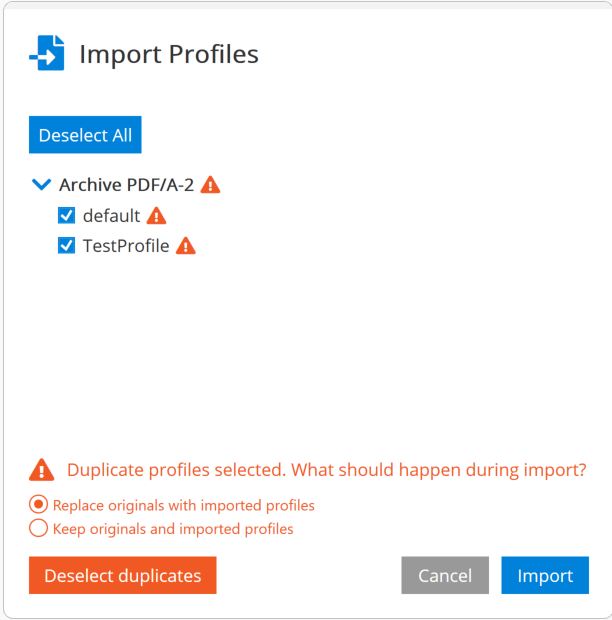
When importing profiles of a workflow, the following workflow properties are also imported:
- Workflow state: Whether the workflow is activated or deactivated.
- Default workflow: If the default workflow is exported, it is set as default workflow on import.
Exporting profiles
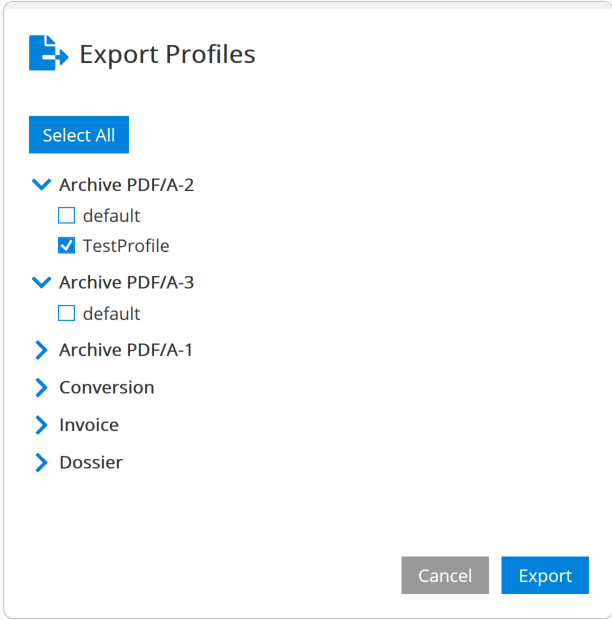
Click Export Profiles in the top-right menu to export one or more profiles to a profile configuration file.
- Name (required): Enter the desired name for the profile.
- Default: Check this box to set the current profile as the default profile for the given workflow.
- Processing Steps: Enable or disable optional processing steps. Corresponding options are displayed accordingly.
- Options: Set options for individual processing steps. A summary for each option is documented with tooltips. For a detailed explanation of the options, click on the title of the corresponding section to open the documentation panel.
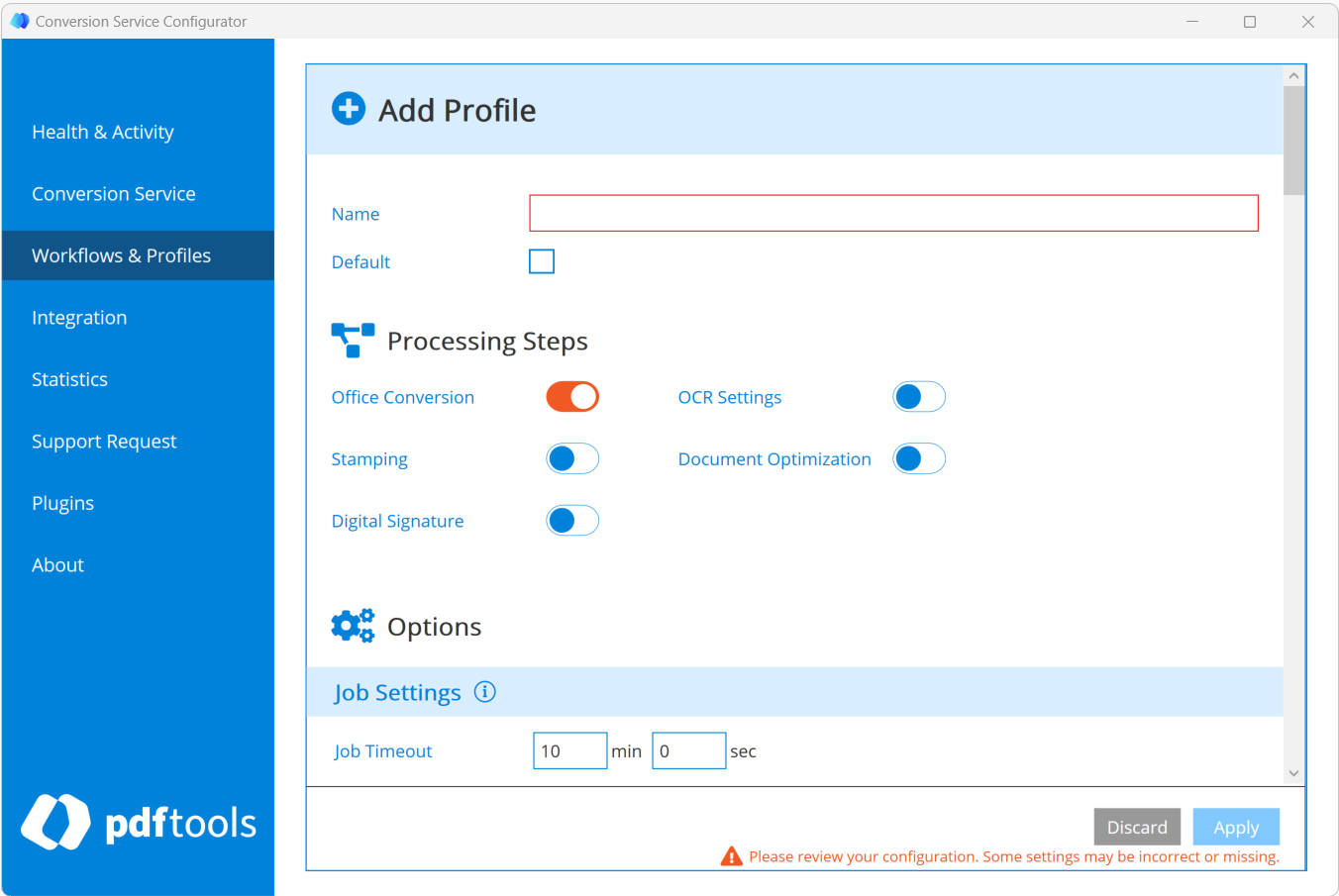
You must restart the service for the configuration changes to take effect.
When you add or edit profiles, the Configurator detects changes and displays an unobtrusive notification. For your convenience, your changes are kept in memory, until you click Save & Restart Service in the notification.
Name the exported profile file using the pattern ProfileExport-VERSION.export, where VERSION is the Conversion Service version number (for example, ProfileExport-6.11.0.export).