Error and event codes
When the Conversion Service processes a job, it returns two types of feedback in the job result: an error object if the job fails, and an events array for non-fatal issues. The REST API response has the following structure:
{
  "status": "success",
  "error": {
    "code": "internal",
    "message": "string"
  },
  "events": [
    {
      "code": "ExternalResourceUnavailable",
      "severity": "info",
      ...
      "message": "string",
    }
  ],
  ...
}
- The
error.codefield identifies the error type (refer to Error codes). - Each entry in the
eventsarray has acodefield that identifies the event type (refer to Event codes).
For more information about the response structure, refer to Get Job Result.
Error codes
When a job fails, the error object contains one of the following codes:
| Code | Description |
|---|---|
internal | Internal processing error. |
configuration | Configuration error. |
generic | Unclassified error. |
unsupportedFormat | Input format not supported. |
unsupportedFeature | Unsupported feature encountered. |
option | Invalid option or parameter. |
canceled | Job was canceled. |
timeout | Operation timed out. |
password | Password-related error, for example an encrypted document. |
conformance | PDF conformance requirement violation. |
corrupt | File corruption detected. |
external | External service or resource error. |
Event codes
Event codes identify event types returned in the API response. Events report informational messages, warnings, or errors encountered during processing. The severity field indicates the level of each event: info, warning, or error.
Document integrity
These events indicate issues with the integrity of the input document, such as corruption or missing content.
| Code | Applies to | Description |
|---|---|---|
Generic | All formats | An event that doesn’t match any other type. The message field provides additional details. |
CorruptionRepaired | All formats | A corrupt document was repaired automatically. Because each viewer has its own heuristics for repair, the repaired document might have visual differences. Examples: document damaged during upload, or created by an erroneous application. |
ContentRecovered | PDF, HTML/email, Office | Parts of a corrupt document’s content were recovered. The output may be incomplete or contain visual differences. Review the output manually. Examples: damaged document, invalid image URL in email, wrong MIME part reference, incorrect text encoding. |
External resources
These events occur when the document references external resources that can’t be retrieved during conversion.
| Code | Applies to | Description |
|---|---|---|
ExternalResourceUnavailable | HTML/email, Office | An external resource couldn’t be reached. Examples: an external image in an HTML email replaced with a placeholder because it wasn’t found or the download timed out, content removed from an inaccessible external file in an Office document. Possible causes: no internet access, firewall block, resource doesn’t exist. |
Content layout
These events indicate that document content didn’t fit the configured page dimensions.
| Code | Applies to | Description |
|---|---|---|
ContentClipped | HTML/email | Document content was cut off because it doesn’t fit the page size. Examples: fixed-size table larger than page width, deeply indented list. |
ContentOverflow | HTML/email | Content overflowed into the page margin, but no content was lost. Controlled by the default page size and default page margin settings. Examples: fixed-size table wider than the content area but fitting within the margin. |
Visual fidelity
These events indicate that the output may look different from the original document.
| Code | Applies to | Description |
|---|---|---|
ContentRasterized | PDF, Image | Page content was converted to an image to enable conversion of non-convertible content, for example during PDF/A conversion. |
PageRenderer | PDF, Image | A page was removed from the document because it couldn’t be converted to an image. |
VisualDifferences | PDF, HTML/email, Office | Conversion resulted in visual differences. Examples: proprietary annotation appearance couldn’t be generated, numbers exceeded allowed range, ambiguous font-to-glyph mapping. |
Colorants | Resolved ambiguous or conflicting spot color descriptions. Colorants are special inks (for example, PANTONE). Conflicting descriptions are harmonized during PDF/A conversion. No effect on devices where the colorant is available. | |
TransparencyRemoved | Transparent objects were converted to opaque, as required for PDF/A-1. May cause visual differences. Recommendation: use PDF/A-2 or higher, which allows transparency. | |
FontSubstituted | PDF, HTML/email, Office | A required font wasn’t embedded or installed, so a similar font was substituted. May cause minor visual differences, but all text is preserved. Ensure recommended fonts are installed. |
Metadata and structure
These events indicate that metadata or logical structure information was modified or removed to meet the target format requirements.
| Code | Applies to | Description |
|---|---|---|
MetadataRemoved | Metadata properties (for example, XMP metadata) were removed because they didn’t conform to the target standard. | |
StructureRemoved | Logical structure (tagging) information was removed because it was invalid or corrupt. Tagging provides accessibility information such as reading order. Generated only when tagging must be removed due to invalidity, not when removed by request. | |
NotLinearized | PDF linearization was omitted. Linearization enables incremental download and viewing. This is safe and doesn’t affect content or validity. Example: linearization would increase file size beyond the configured threshold. |
Removed features
These events indicate that interactive or embedded content was removed to meet the target format requirements. Visual appearance is generally preserved, but interactivity is lost.
| Code | Applies to | Description |
|---|---|---|
LayersRemoved | Removed optional content groups (layers). Doesn’t change initial page appearance, but content visibility can no longer be toggled. Example: layers removed during PDF/A-1 conversion. | |
AnnotationRemoved | Removed annotations. Doesn’t cause visual differences, but removes interactivity. Examples: removed proprietary or forbidden annotation types during PDF/A conversion. | |
MultimediaRemoved | Removed multimedia content (sound, movie). Doesn’t cause visual differences, but removes interactivity. Example: removed movie during PDF/A conversion. | |
HtmlMultimediaRemoved | HTML/email | Removed HTML multimedia elements (iframe, embed, source, audio, video). May cause visual differences and removes interactivity. |
ActionRemoved | Removed prohibited action types. Doesn’t cause visual differences, but removes interactivity. Example: removed JavaScript actions in form fields during PDF/A conversion. | |
SignatureRemoved | Removed cryptographic signatures from a signed document. Visual appearances are preserved. Examples: merged signed PDFs, converted a signed document to PDF/A, optimized a signed document. | |
ChildRemoved | All formats | Removed a child element from a container. Examples: removed an embedded file from a PDF, removed a file from a ZIP archive, removed an attachment from an email. |
OCR
These events indicate issues with optical character recognition processing.
| Code | Applies to | Description |
|---|---|---|
OcrIncomplete | PDF, Image | Unable to perform optimal OCR recognition. Examples: optimal resolution not within configured range, required fonts for OCR text not installed. |
UnicodesIncomplete | PDF, Image | Unable to make text fully extractable. Critical when text processing mode is set. Example: unable to add Unicode information to a font. |
TaggingIncomplete | PDF, Image | Unable to generate complete tagging information. Critical for accessibility tagging of scans. Doesn’t mean no OCR text was added, only that tagging had issues. Can generally be ignored unless accessibility compliance is required. |
Configure event behavior
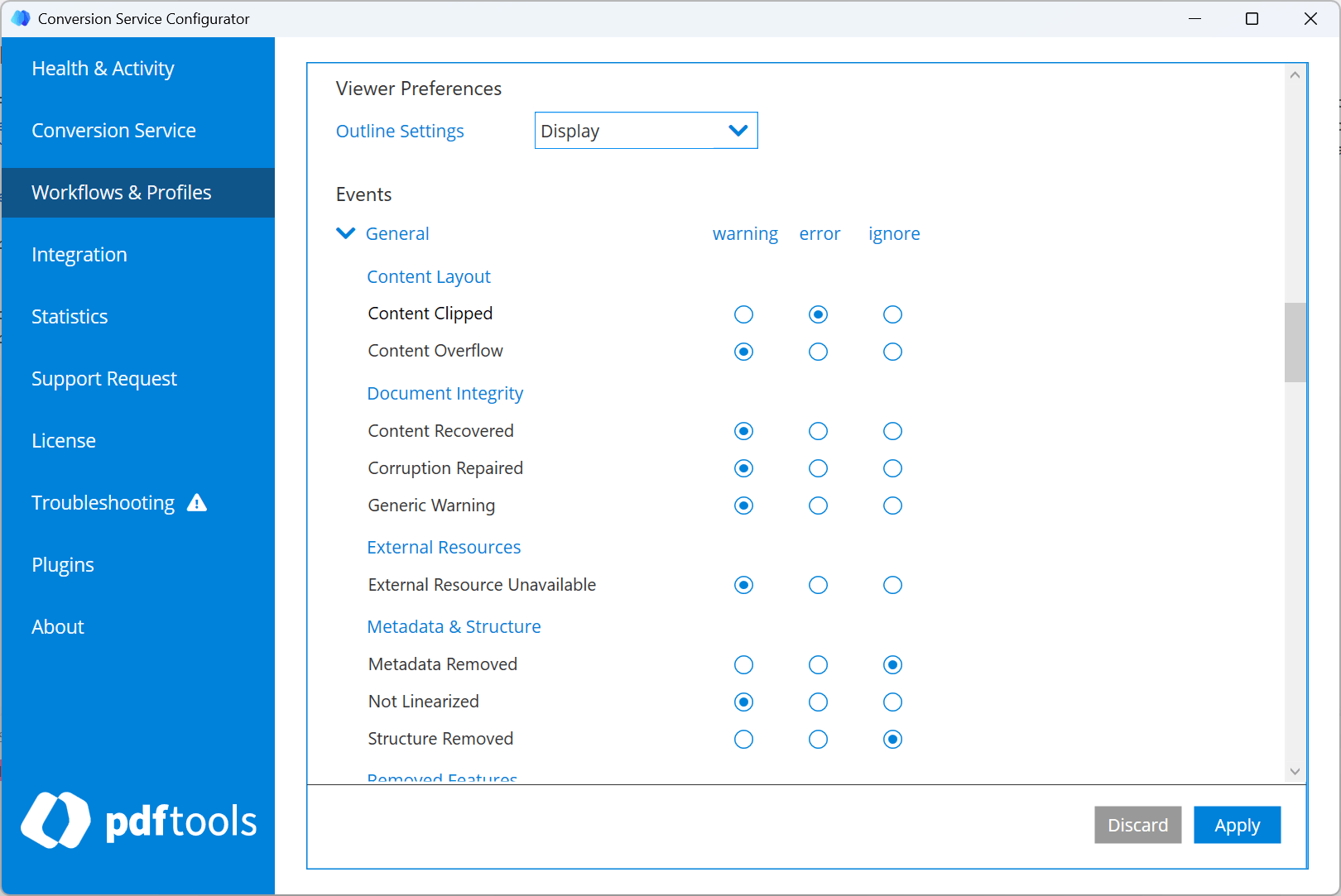
You can configure how each event is handled in the workflow profile using the Configurator. In the Workflows & Profiles section, select a profile and open the Events settings. Each event has three options:
- Warning (default): The job continues and logs a warning.
- Error: The job fails if this event occurs.
- Ignore: The event is silently suppressed.
The Configurator groups events by category: