Conversion Service licensing
Learn how to activate and configure license keys for the Conversion Service.
For information about using the Conversion Service, review Conversion Service documentation.
This page includes details about one of the Pdftools products. For a general overview of different licenses of Pdftools products, see Licenses of Pdftools products.
Get trial license
To try or fully use the Conversion Service, you must obtain a license key. To get the Conversion Service evaluation license key for free, follow these steps:
- Sign up or log in to the Pdftools Portal.
- On the Products page, next to the Conversion Service, click Get started or See product.
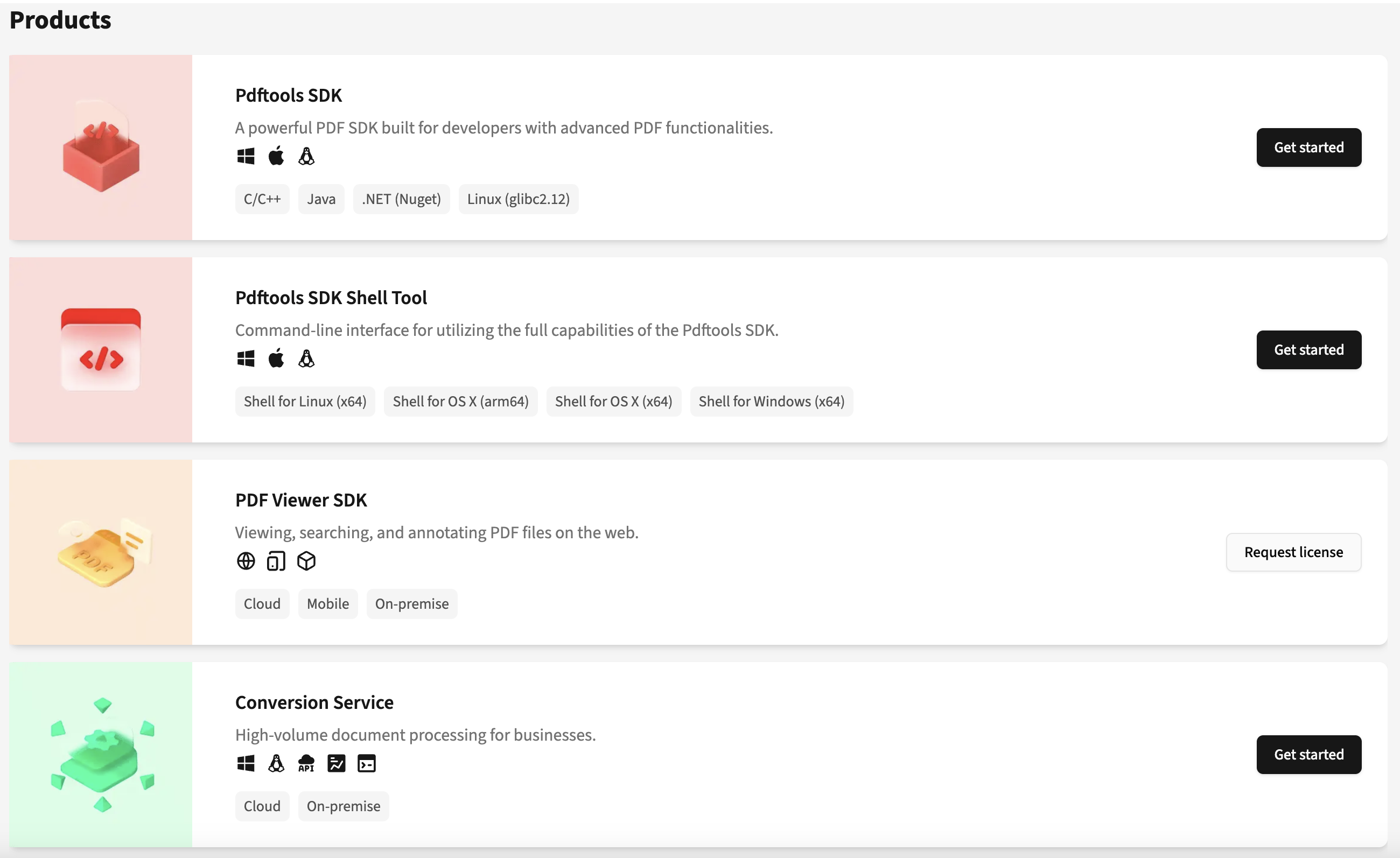
- Next to the Conversion Service Trial, click the Copy .

You now have a free trial license key. Its limitations are the following:
- The converted files have a watermark
- The license key is limited to 90 days.
The trial license key is valid for 90 days starting at UTC time. The Pdftools Portal indicates the validity period starting at 89 days (as the consumption of the first day already started). This period may slightly vary depending on your time zone relative to UTC.
Request full license
You can try the Conversion Service for free with a trial license key. In this section, you can learn how to request a full license key.
To request a full license key, follow these steps:
- Sign up or log in to the Pdftools Portal.
- On the Products page, next to the Conversion Service, click Request license.
- On the Contact us window, fill in the requested fields, and then click Submit.
Find the Conversion Service license key
To find and copy a license key:
- Sign up or log in to the Pdftools Portal.
- On the Products page, next to the Conversion Service, click Get started or See product.
- Next to the Conversion Service Trial or Active, click Click to copy .
Add or remove a license key
If you are running the Conversion Service on Windows systems, add a license key in your Conversion Service license tab by the following steps:
- In the Conversion Service Configurator, click License tab.
- Paste the license key into the Key field and click Add.
To remove a license key:
- In the Conversion Service Configurator, click License tab.
- Under the License Information section, next to the Key field, click Remove.
Review the following links for information about the Conversion Service license key management in Docker:
- For stand-alone Docker containers, review Manage license keys documentation.
- For Docker Compose containers, review Configure containers using Docker Compose documentation.
The Conversion Service uses the Licensing Gateway Service (LGS) to validate the license keys. The LGS is preinstalled with the Conversion Service and requires an internet connection to validate the license keys. Read the Licensing Gateway Service section for more information.
Licensing credit count
The Conversion Service charges page credits for every successfully converted document page. These page credits also apply to attached and embedded documents. Processing a PDF/A page costs two extra page credit. The number of page credits charged depends on the specific workflow selected:
| Workflow | Page credits |
|---|---|
| Conversion | 1 |
| Archive PDF/A-2 | 2 |
| Archive PDF/A-3 | 2 |
| Archive PDF/A-1 | 2 |
| Dossier | 1, 2, or free (review Dossier credits) |
| Invoice | 2 |
| Archive TIFF | 1 |
| Sign | 1 |
| Extraction | 1 |
Dossier page credits
The Dossier workflow lets you assemble several PDF documents into a single dossier with extended functionality, such as a title page and table of contents.
The number of page credits calculated for the Dossier workflow depends on the selected preprocessing workflow:
- Any Archive workflow (Archive PDF/A-2, Archive PDF/A-3, Archive PDF/A-1) costs two page credits (the same price as just the conversion to PDF/A-2 without a dossier).
- The Conversion workflow costs one page credits.
- If you don’t select a preprocessing step, assembling a dossier costs no page credits.
Remaining page credit count
To review the remaining page credits in your license usage quote, you can review your license usage:
- In the Pdftools Portal. For more information, review View page credits consumption in the Pdftools Portal.
- In the Conversion Service Configurator. For more information, review View page credits consumption in the Conversion Service Configurator.
If you are using a version of the Conversion Service prior to 6.6.0, contact the Pdftools sales team through the Contact page to get information about the remaining page credit count.
View page credits consumption in the Pdftools Portal
- Log in to the Pdftools Portal.
- In the Products tab, click See product next to the Conversion Service.
- Find your page credits usage in a specific section that lists your license key.
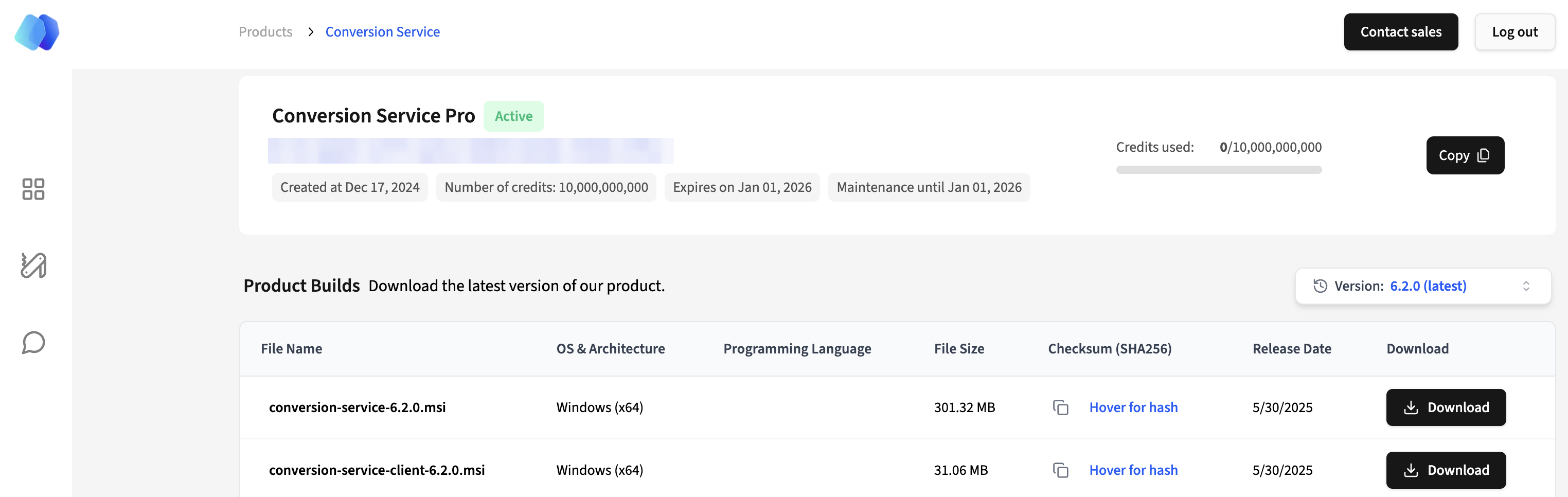
On this page, you can review your total number of page credits, number of used credits, license key expiration, and more.
View page credits consumption in the Conversion Service Configurator
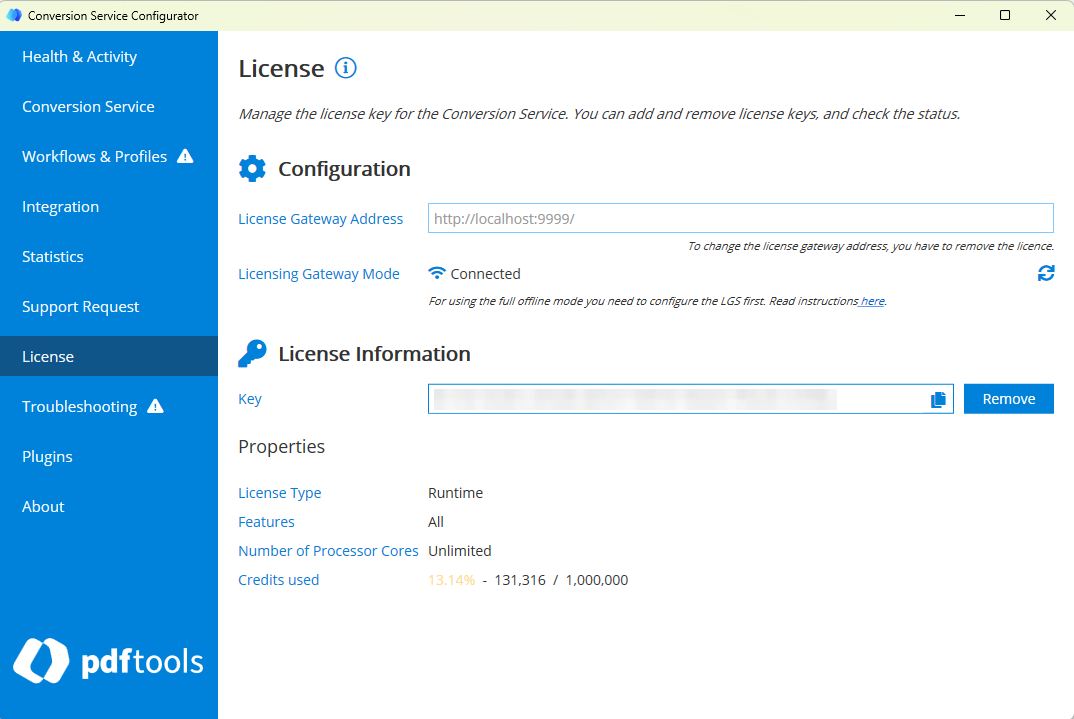
- In the Conversion Service Configurator, open the License tab.
- Review the percentage of used page credits in the Properties section.
Licensing Gateway Service
In the background, the Conversion Service uses the Licensing Gateway Service (LGS) to activate and use a license key or to report the number of used page credits to Pdftools. The LGS connects to the Pdftools Licensing Service to validate the installed license key and transmit the number of processed pages. Since version 4.7 of the Conversion Service, the LGS is installed locally with the Conversion Service on Microsoft Windows systems.
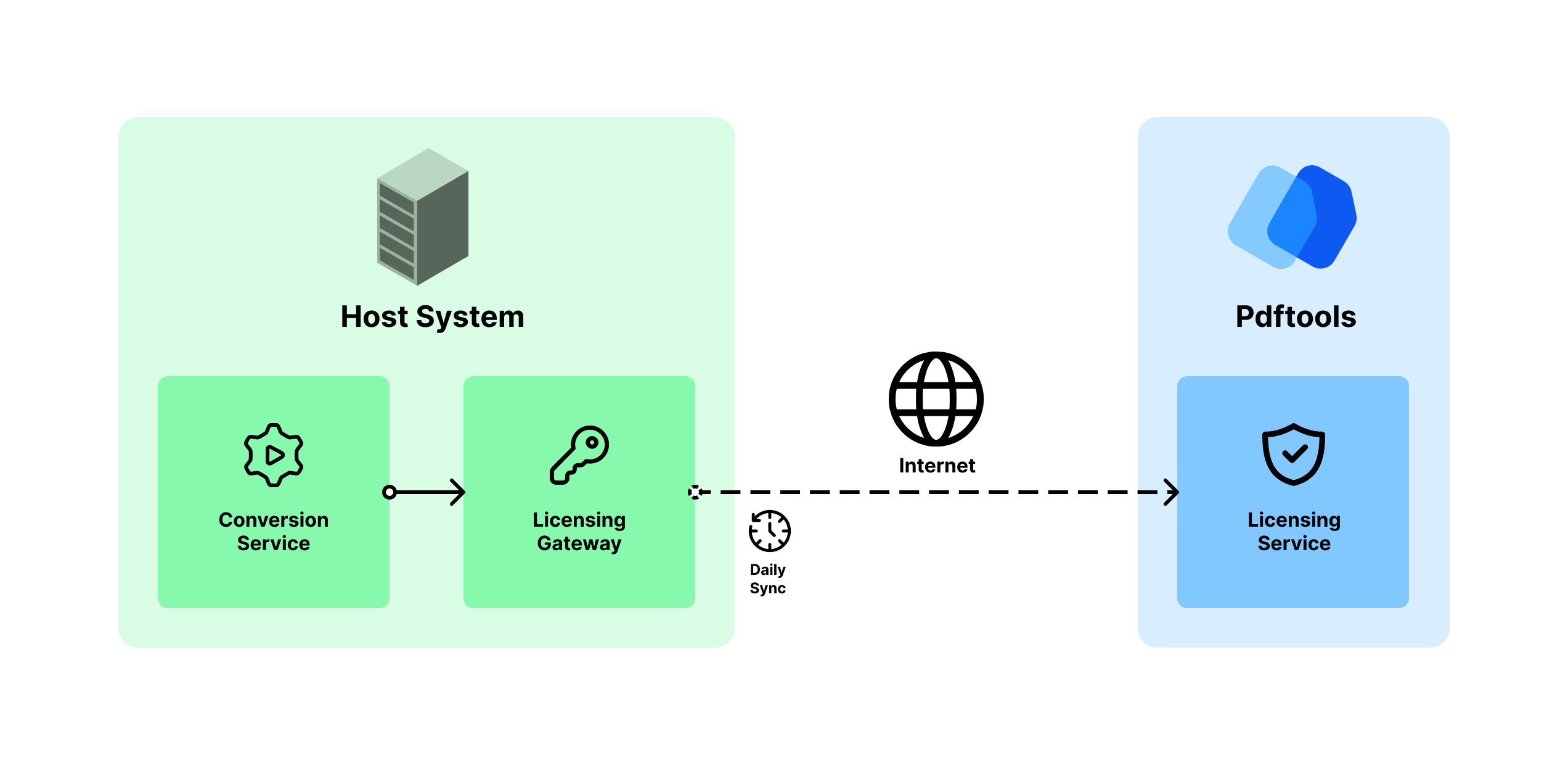
To configure the firewall service correctly, note that the LGS connects through port 443 (SSL) to the Pdftools Licensing Service hosted at https://licensing.pdf-tools.com/.
Pdftools does not receive information about documents and data processed by the Conversion Service other than the hostname and the number of processed pages. At Pdftools, we highly value our customers’ privacy.
Internet access
The LGS requires an internet connection. The Conversion Service uses LGS to add or remove a license key, or to report the number of used page credits to Pdftools.
If you lose the internet connection, the license key remains active for:
- Seven days - Professional and Business plan
- 30 days - Enterprise plan
You are prompted with a configuration error if the gateway refuses to consume page credits due to an invalid license or lack of internet connection. Details about the error are in the Conversion Service log. For more information, review Troubleshooting section.
Contact the Pdftools Customer Success team to discuss fully offline access to the Conversion Service. This option is available for the Enterprise plan users.
Manage multiple Conversion Service installations
All your Conversion Service instances can use the same license key activated in one LGS. You can use the same LGS as the one that is preinstalled by default with the Conversion Service, or you can install the LGS separately without the Conversion Service. The system that sends the usage data must have an internet connection. In a nutshell, to have multiple systems running the Conversion Service using a single license key:
- Change the LGS address to the address of a system that sends the usage data.
- The system that sends usage data needs to maintain an internet connection.
- This system needs to have the LGS installed.
You can install the LGS:- Automatically with the Conversion Service.
- Separately without the Conversion Service.
- This system needs to have the LGS installed.
For example, there are computers A, B, and C in the local network. Computers B and C send usage data to computer A. A then sends data to Pdftools. To create this setup:
- Computer A needs to have the LGS installed and configured.
- Computers B and C need to have the local network address of A added in the Conversion Service Configurator.
It is possible but not required to activate different instances with multiple license keys. Multiple license keys can be issued under specific circumstances. When Windows and Docker-based Conversion Service is running simultaneously, or if you use an older licensing model based on a number of cores. For more details, review Legacy core-based license key section.
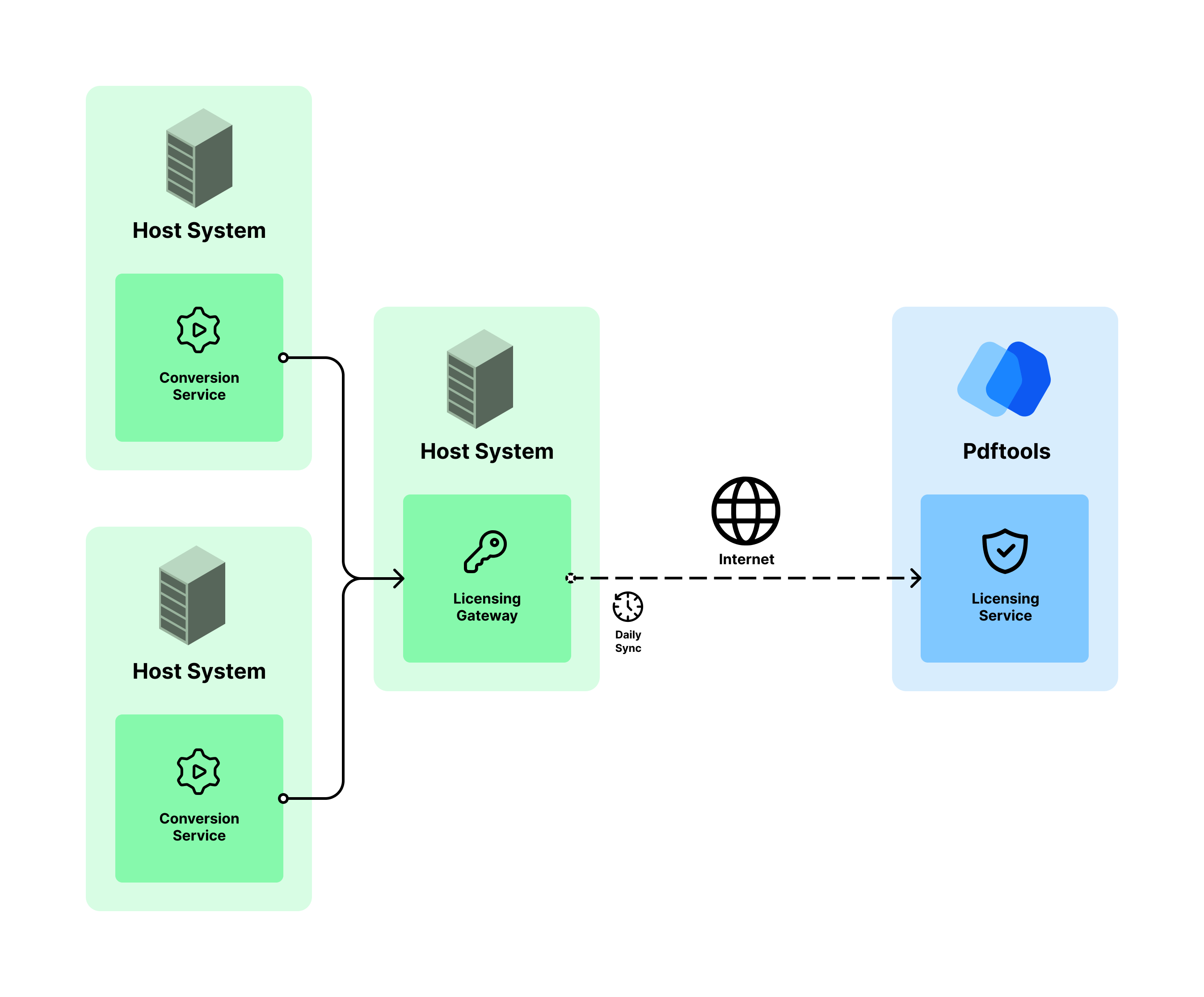
For specific steps, configure the LGS as described in the following Prerequisites and Change the Licensing Gateway Service address in the Conversion Service sections.
Prerequisites
Ensure you have an LGS set up and that your license key is activated. If you choose to install the LGS separately without the Conversion Service, make sure that this system has an internet connection to communicate with the Pdftools Licensing Service. For detailed instructions on how to install and interact with the LGS, review Install the LGS.
Change the Licensing Gateway Service address in the Conversion Service
For each Conversion Service instance, add the address of the system that hosts the Licensing Gateway Service (LGS), which also maintains the internet connection with Pdftools.
If you activated a license key before, you must remove it first. To remove the license key:
- In the Conversion Service Configurator, go to the License tab.
- Copy the license key from the Key field.
- Click Remove, and then OK.
Configure the LGS address by the following steps:
-
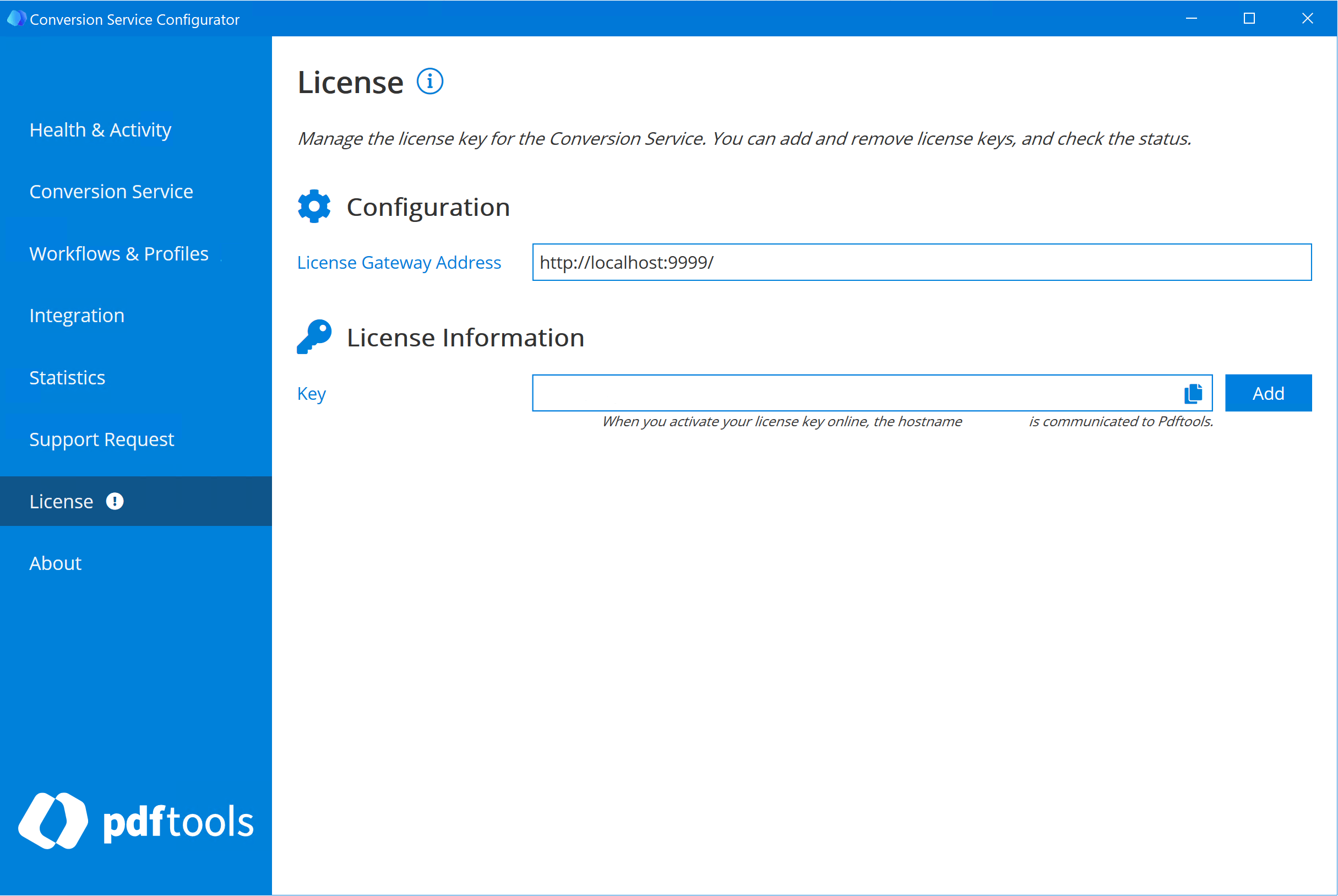
In the Conversion Service Configurator, go to the License tab.
-
In Configuration, change the License Gateway Address field to the specific computer address in your network that has LGS installed.
-
Click Save or Save & Restart.
-
Paste the license key to the Key field, and then click Add.
If you are using the Conversion Service in Docker, change the address of the Licensing Gateway Service using the environment variable LICENSINGSERVICE. Find more details in the Conversion Service in Docker getting started guide, specifically in the last steps of the procedure documented in the Configure and export a profile section.
Full offline mode license activation
Use the Conversion Service fully offline with valid license keys for at least three months or more, depending on your license.
Configure offline mode
Configure the Licensing Gateway Service (LGS) for offline use:
- Locate the LGS configuration file
appsettings.json. The configuration file is in the installation folder, for example:C:\Program Files\Pdftools\Licensing Gateway Service\appsettings.json - Update the configuration file so that the
IsOfflineModeproperty is set totrue. Example configuration file:{"LicensingServicePortNumber": 9999,"LogFilePath": "C:/logs/pdftls/log.txt","LogRetentionDays": 7,"IsOfflineMode": true} - Restart the Licensing Gateway Service.
- Go to the Conversion Service Configurator > License tab.
- Click Refresh button next to the Licensing Gateway Mode field, or restart the Configurator.

- Verify that the Licensing Gateway Mode displays Full Offline.
Add license key
To add a license key in full offline mode:
-
In the Conversion Service Configurator, select the License tab, enter your license key in the Key field, and then click Add.

-
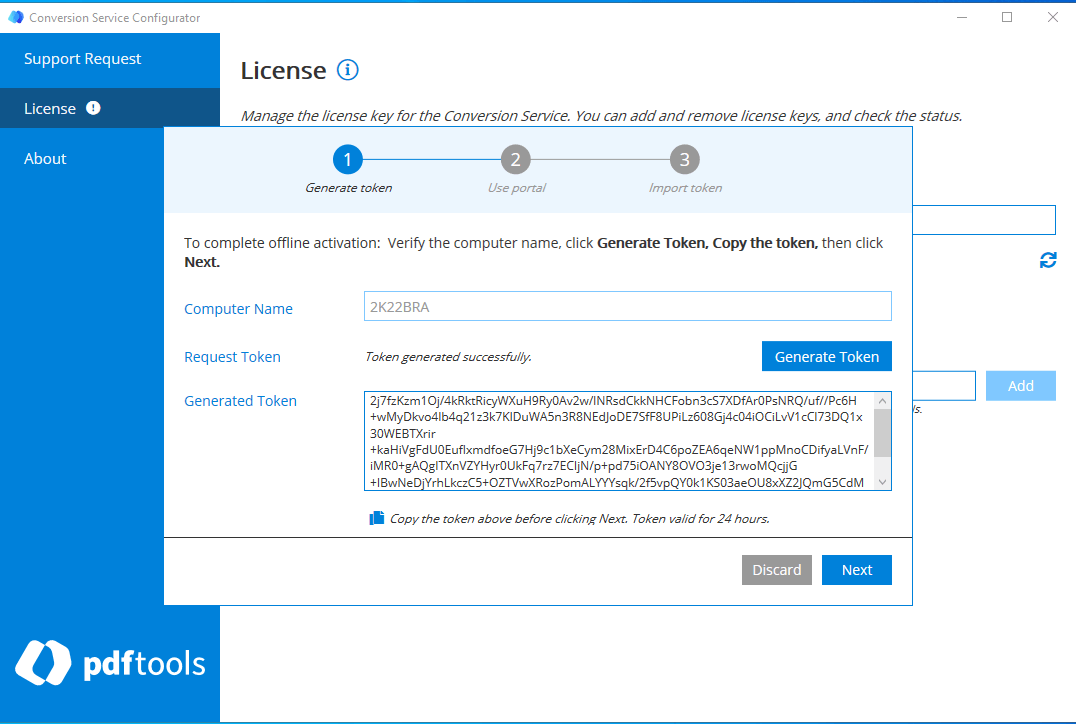
Optional: In the Activation Wizard, you can change the pre-populated Computer Name field with another machine name.

-
Click Generate Token. The generated token is valid for 24 hours.
-
Click Copy button to copy the token, and then click Next.

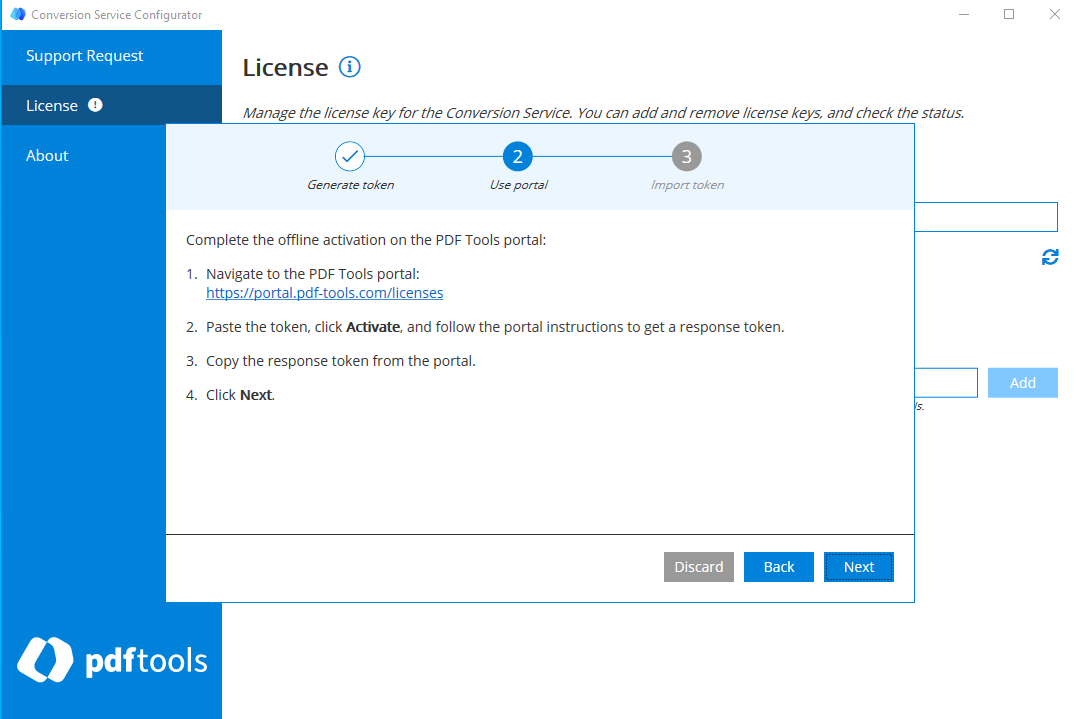
The Activation Wizard displays the guidance for the next steps.
-
Optional: If the machine running the Configurator doesn’t have internet access, transfer the token to a machine that does.
-
Open the Pdftools Portal in a web browser.
-
Select the Activate tab, and then paste the token into the field marked as Insert your token here.

-
Click Activate.

-
Click Copy to copy the response token.
-
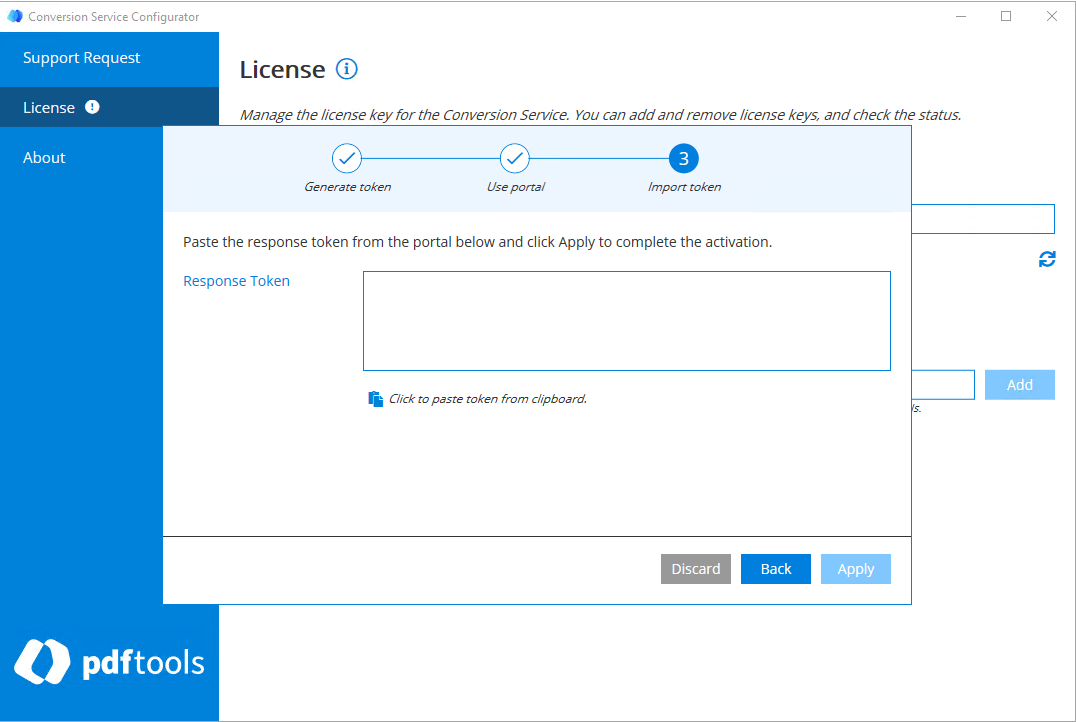
Optional: If you accessed the Portal from a different machine, transfer the response token back to the machine running the Configurator.
-
In the Configurator, click Next.
-
Press Ctrl + v or click the paste icon to paste the token into the text field.
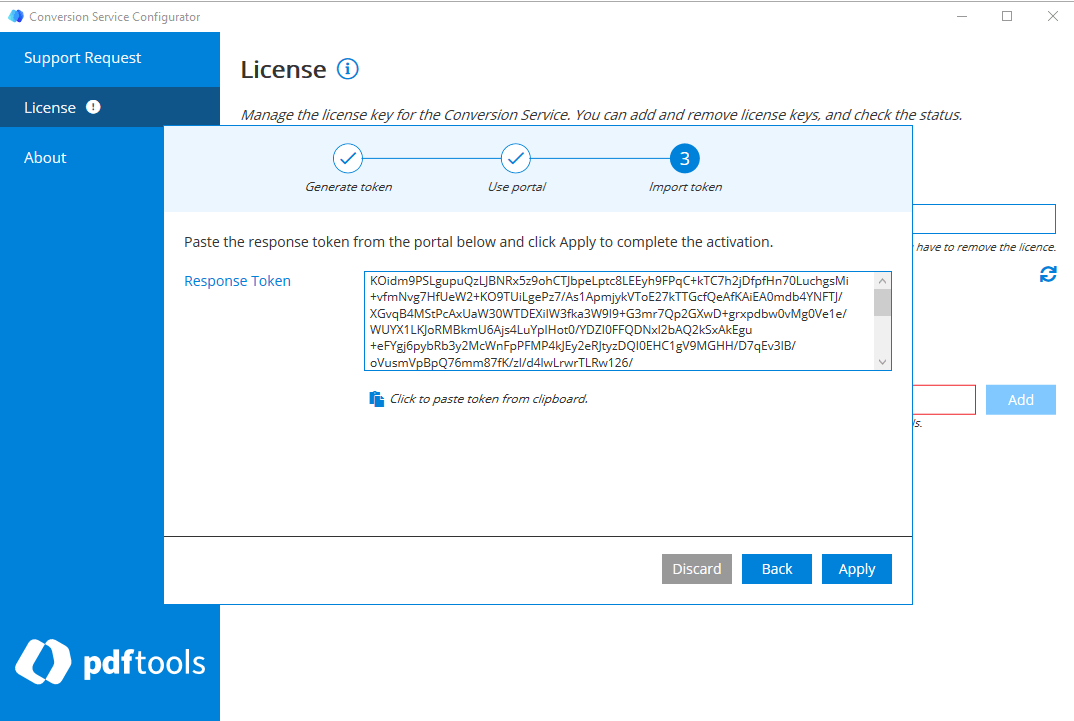
-
Click Apply.
The license is added. The Configurator displays the License Expiration Date and Token Validity.
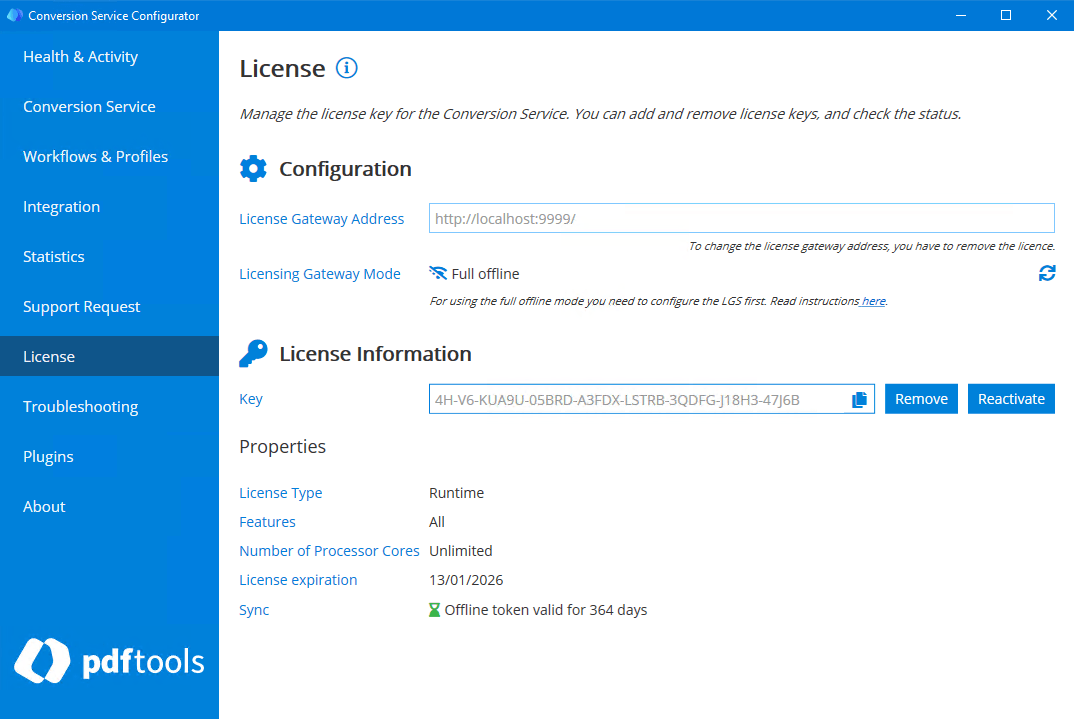
The License tab displays two dates related to the offline activation:
- License expiration - The date when the license key expires.
- Sync - Number of days for which offline activation is valid.
Both of these values must be valid for the license to work in the full offline mode. These values are independent. Your license key can expire before or after the full offline mode activation period. To extend the token validity period, review Reactivate license key.
Reactivate license key
To extend the token validity for a license key in the full offline mode, follow these steps:
- In the Conversion Service Configurator, select the License tab.
- Click Reactivate.
- Follow the same steps as described in section Add license key
Remove license key
To remove a license key in full offline mode:
- In the Conversion Service Configurator, select the License tab, and then click Remove.
The Offline Deactivation Wizard opens.
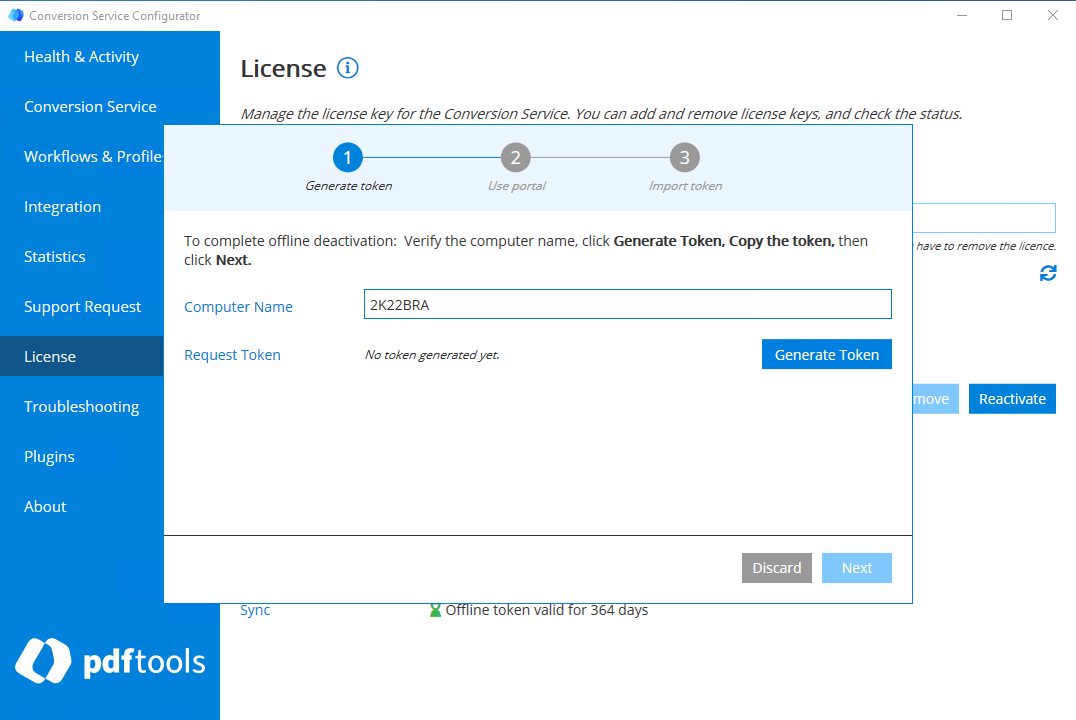
- Click Generate Token. The generated token is valid for 24 hours.
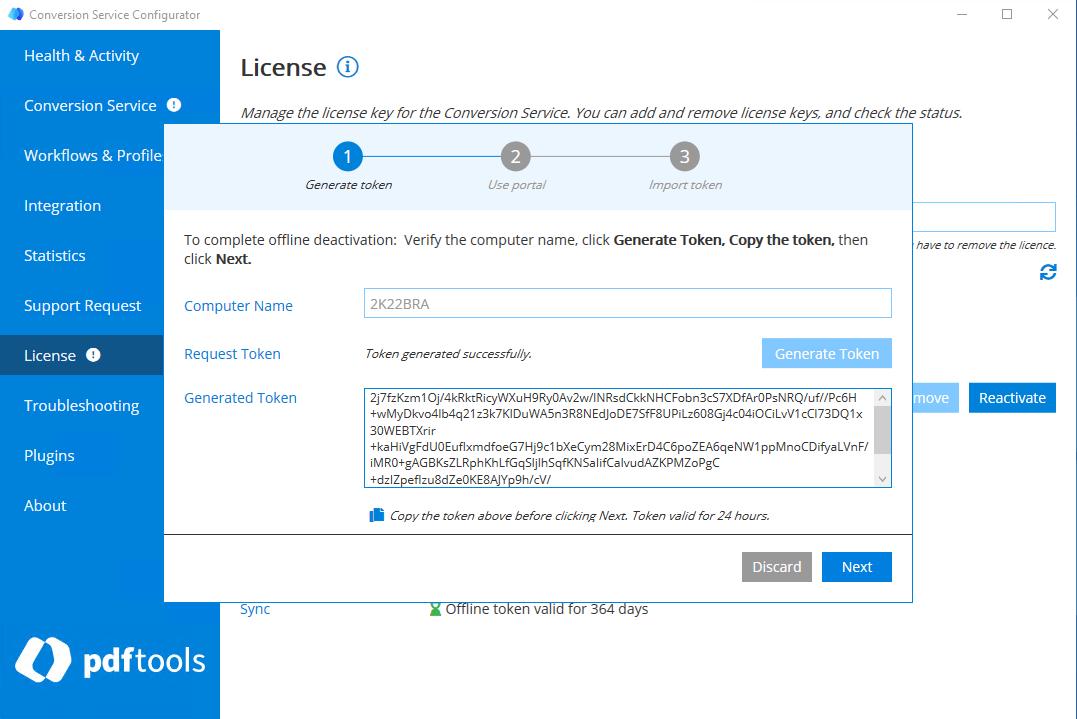
- Optional: Change the pre-populated Computer Name field to another machine name.
- Click Copy to copy the token.
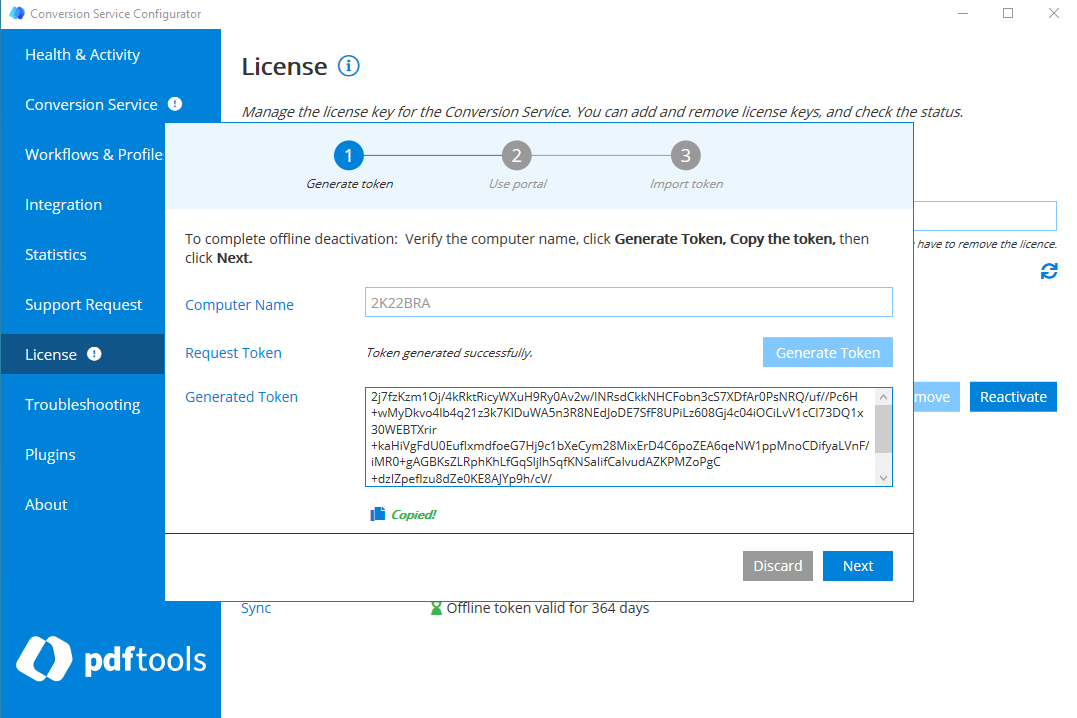
- Click Next.
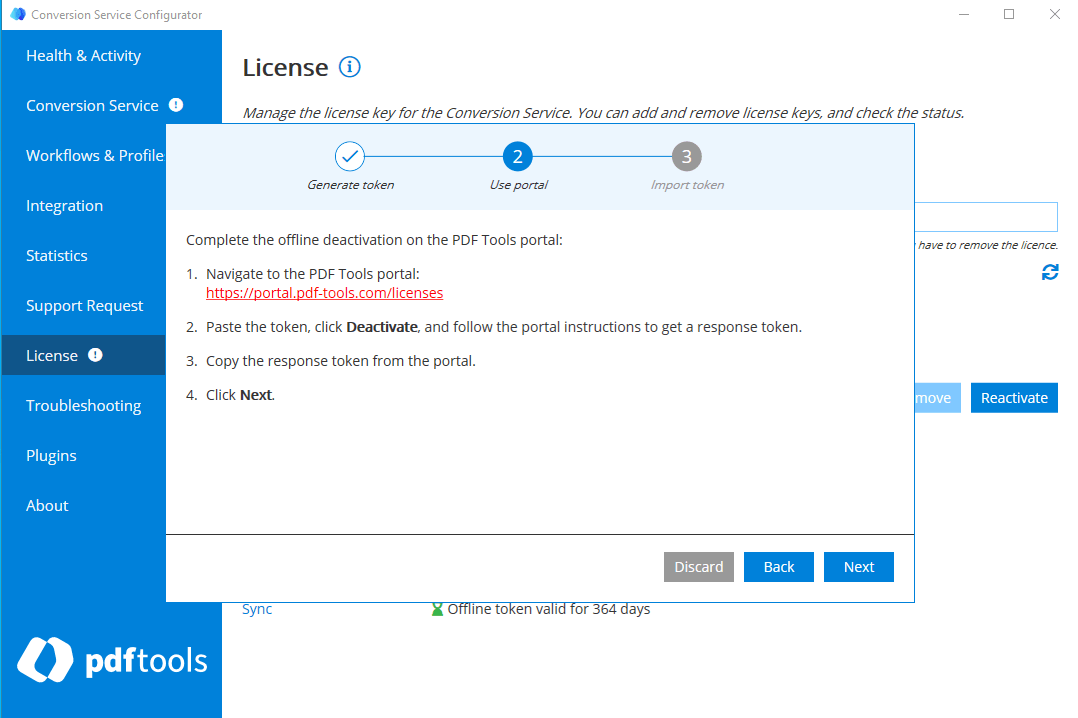
- Optional: If the machine running the Configurator doesn’t have internet access, transfer the token to a machine that does.
- Open the Pdftools Portal in a web browser.
- Switch to the Deactivate tab, and then paste the token into the field marked as Insert your token here.
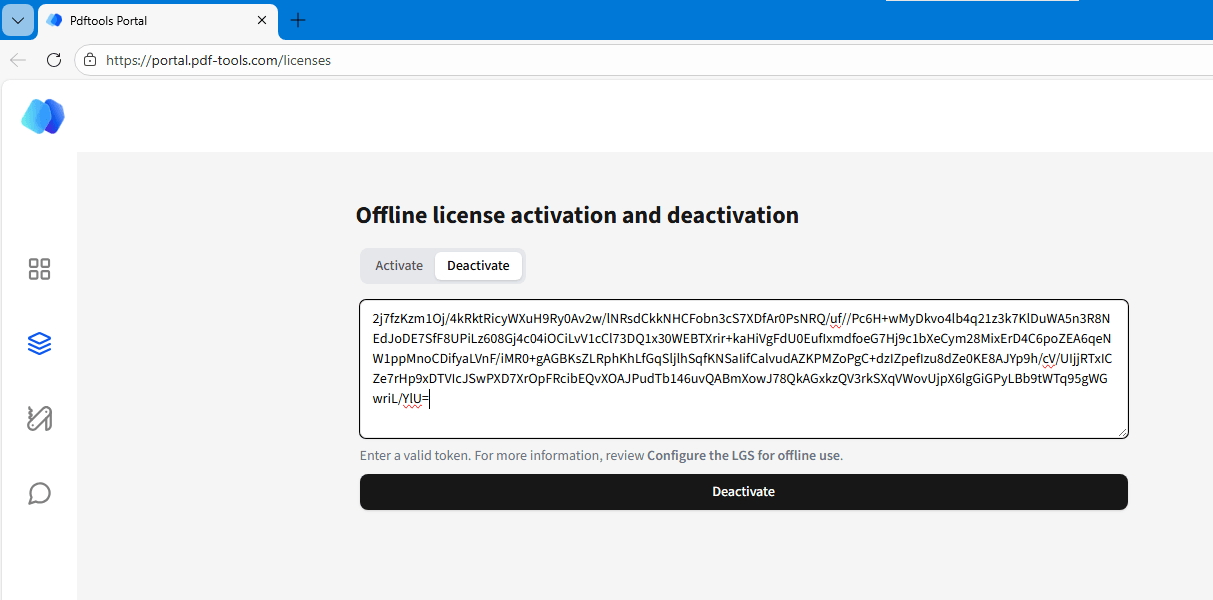
- Click Deactivate.
- Click Copy to copy the response token.
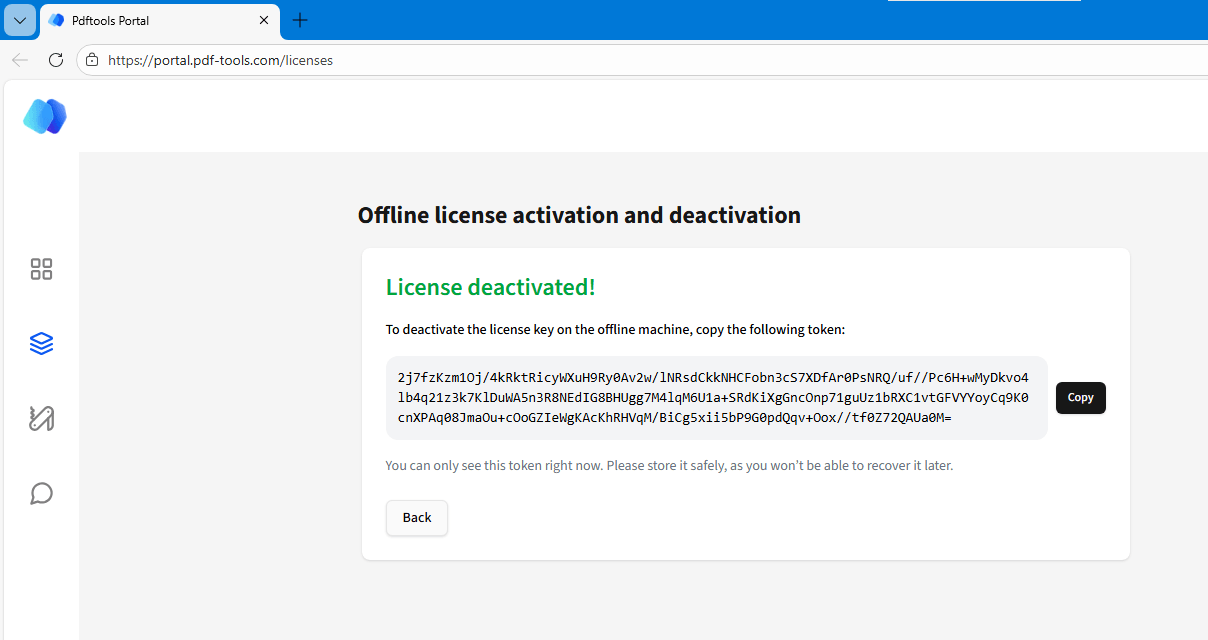
- Optional: If you accessed the Portal from a different machine, transfer the response token back to the machine running the Configurator.
- In the Configurator, click Next.
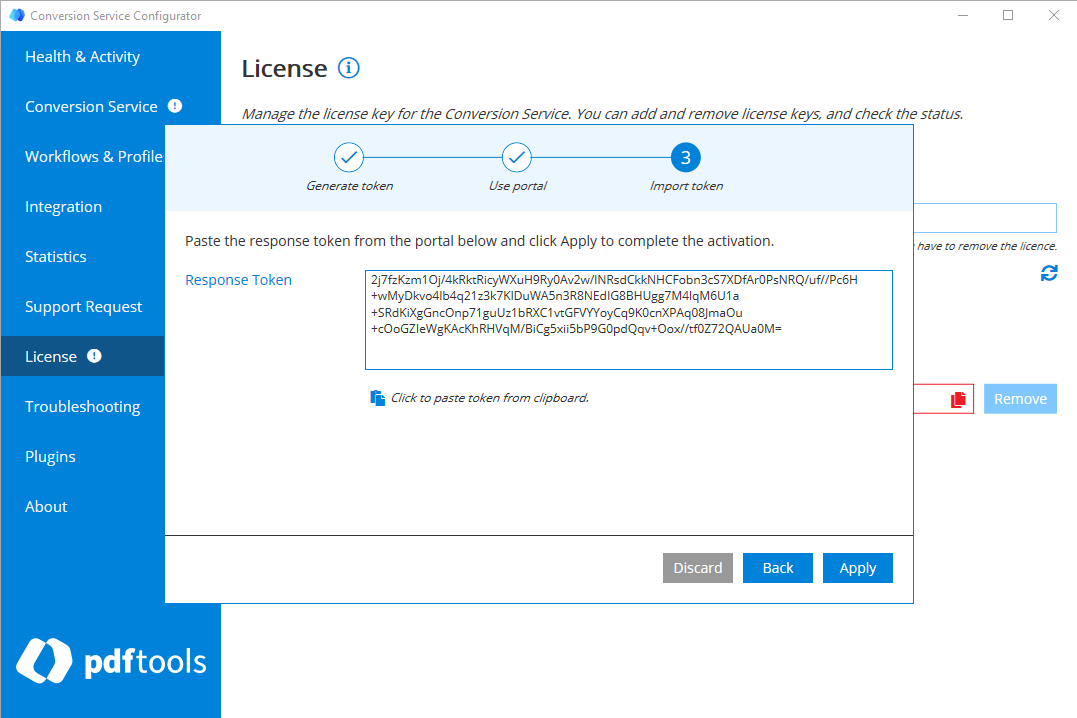
- Press Ctrl + v or click the paste icon to paste the token into the text box.
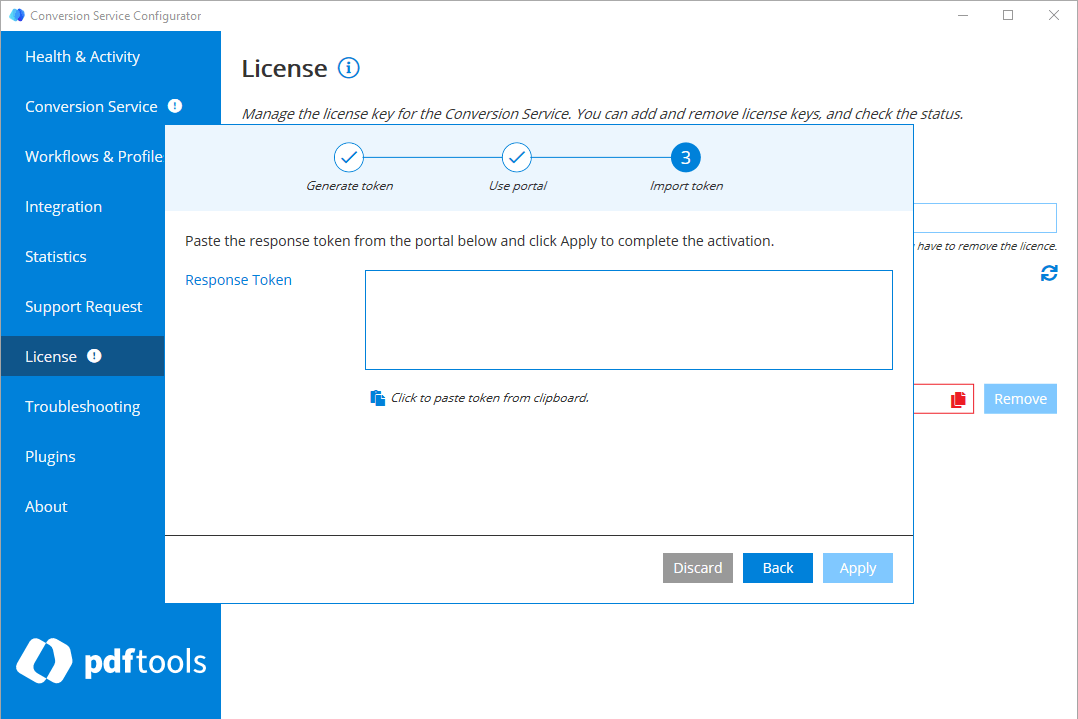
- Click Apply.
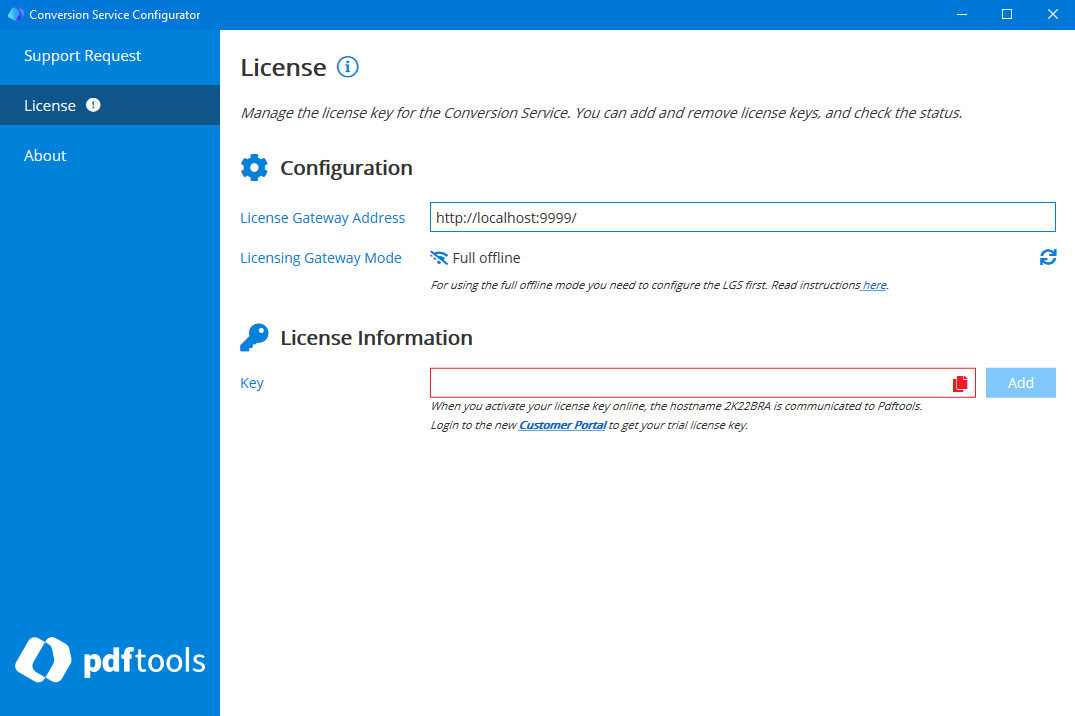
The license key is removed. The Configurator displays only a limited number of tabs (Support Request, License, and About).
Legacy core-based license key
License keys issued before September 2023 use a core-based license. With a core-based license, you can manage the license keys with the legacy License Manager application. There are different options depending on the version of the Conversion Service:
- Conversion Service version 4.6 or earlier: Use the legacy License Manager to activate and deactivate core-based license keys.
- Conversion Service version 4.7 or higher: You can use both the License tab in the Conversion Service Configurator for the usage-based licensing model or the legacy Licensing Manager to activate and deactivate core-based license keys.
- Conversion Service version 5.2 or higher: You can use only the License tab in the Conversion Service Configurator for the usage-based licensing model to activate, update, or deactivate core-based license keys.
Offline usage for legacy core-based licenses
The following actions require internet access:
- License key activation
- License key update
- License key deactivation
See the next sections for more information about offline license key activation, update, and deactivation for the legacy core-based licenses.
Offline license key activation
To activate a license key without internet access:
- In the Conversion Service Configurator, select the License tab.
- Paste your license key in the Key field, and then click Add.
- If you are offline, a window appears with a prompt: You’re offline. Follow the steps to activate a license key offline:
- Follow the steps as documented within the Conversion Service Configurator.
Offline license key update
To update a license key without internet access:
- In the Conversion Service Configurator, select the License tab.
- Click Update.
- If you are offline, a window appears with a prompt: You’re offline. Follow the steps to activate a license key offline:
- Follow the steps as documented within the Conversion Service Configurator.
Offline license key deactivation
To deactivate a license key without internet access:
- In the Conversion Service Configurator, select the License tab.
- Click Remove.
- If you are offline, a window appears with a prompt: You’re offline. Follow the steps to activate a license key offline:
- Follow the steps as documented within the Conversion Service Configurator.
Troubleshooting
You may encounter problems when adding or using a license. See the following sections for the most common errors.
Configuration errors
During configuration, you can encounter warnings and errors inside the Conversion Service Configurator. These errors and warnings can also prompt you with a resolution of your issue.
Unable to add license key / License key could not be removed
To add and remove a page-based license key, the License Gateway requires an internet connection.
Activation Failed / License key could not be deactivated
Usage-based licensing: When you activate a license key in the LGS, it is linked to the machine where you activated it. If you install LGS on another machine, deactivate the license key so you can activate it again in the LGS. For more information, review License key deactivation.
Core-based licenses: Most core-based licenses must be activated before they can be used and deactivated before they can be removed. The activation and deactivation process requires an internet connection. If your system is running offline, review Offline usage documentation.
License validation or consumption errors
Some of the warnings and errors that can be encountered during regular use of the service.
License consumption failed (InvalidConfiguration)
There was an error in the consumption of the license page credits. There are several possible reasons for such an error. Use the Conversion Service Configurator to view the current license status and if there are any errors.
Service not available due to a license issue
The validation of the current license failed. Please use the Conversion Service Configurator to view the current license status.