Activate license keys on multiple LGS instances
Activate one license key on up to 10 offline LGS machines, one machine at a time or on several LGS instances at once with the batch commands. The examples on this page use ptl. The command name depends on your installation, as listed in Activate license keys offline.
Activate one license key on multiple machines
Multi-machine activation requires LGS version 1.3.1030 or later.
To check the version of your LGS installation, run the following command:
ptl --version
A single license key supports activation on up to 10 separate offline LGS machines. Each machine requires its own LGS installation, configuration, and a separate activation. Deactivating on one machine doesn’t affect the other machines using the same license key.
To activate the same license key on multiple machines:
- Install and configure the LGS on each offline machine as described in Set up full offline mode.
- Activate the license key on each machine individually by following the steps in Activate a license key.
- Reactivate the license key on each machine before the 365-day activation period expires, as described in Reactivate a license key.
To activate the same license key on more than 10 machines, contact Pdftools through the Contact form.
Manage stored endpoints
When managing multiple LGS instances, save frequently used endpoint URLs so you don’t have to specify them on every batch command invocation.
| Command | Description |
|---|---|
ptl endpoints-add <url> | Save an LGS endpoint URL (must be a valid HTTP or HTTPS URL). |
ptl endpoints-remove <url> | Remove a stored endpoint. |
ptl endpoints-list | List all stored endpoints. |
Stored endpoints are saved in the "Endpoints" array in appsettings.json. You can also edit this field manually.
When batch commands (activate-all, deactivate-all, batch-export-activation, batch-export-deactivation) are called without endpoint URL arguments, they automatically use the stored endpoints. Endpoint URLs provided on the command line always take priority over stored ones.
Batch activation across multiple LGS instances
To activate the same license key across multiple LGS instances, such as several Docker containers, Linux servers, or Windows machines, use the batch commands. The machine running ptl must be able to reach all listed LGS endpoints over the network. Whether the machine running ptl also needs internet access depends on the method: the Pdftools Portal method doesn’t need it, and the CLI method does.
Save your LGS endpoint URLs with ptl endpoints-add to avoid specifying them on every batch command. For details, refer to Manage stored endpoints.
Batch activate a license key
To activate a license key across multiple LGS instances:
-
Generate a batch activation token from all LGS endpoints:
ptl batch-export-activation "LICENSE_KEY_VALUE" ENDPOINT_1 ENDPOINT_2- Replace
LICENSE_KEY_VALUEwith your license key. - Replace
ENDPOINT_1 ENDPOINT_2with the addresses of your LGS instances (for example,http://localhost:9991http://localhost:9992). Omit the endpoint arguments to use stored endpoints.
- Replace
-
Copy the generated batch activation token.
-
Exchange the batch activation token for a license activation token:
- Pdftools Portal
- CLI
- If the machine running
ptldoesn’t have internet access, transfer the token to a machine that does. - Log in to the Pdftools Portal.
- Go to the Licenses tab.
- Paste the batch activation token into the field marked as Insert your token here….
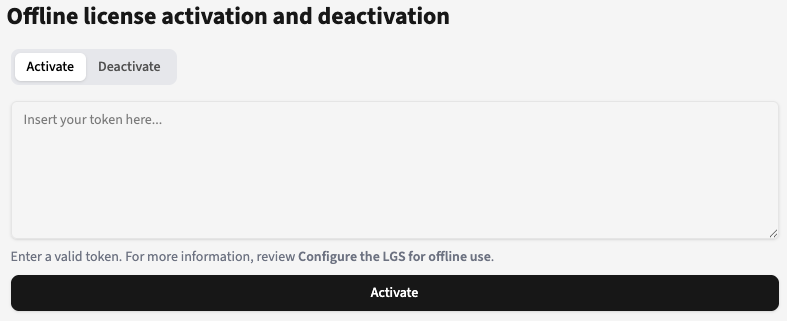
- Click Activate, and then click Continue.
- Copy the generated license activation token. If necessary, transfer it back to the machine running
ptl.
This method needs internet access on the machine running
ptl.- Activate the token online:
ptl activate "BATCH_ACTIVATION_TOKEN"
- Replace
BATCH_ACTIVATION_TOKENwith the token from the previous step. Theactivatecommand auto-detects batch tokens.
- Replace
- Copy the generated license activation token.
-
Import the activation across all LGS instances:
ptl batch-import-activation "LICENSE_ACTIVATION_TOKEN"- Replace
LICENSE_ACTIVATION_TOKENwith the token from the previous step.
- Replace
The license key is activated across all specified LGS instances.
Shortcut: activate-all
If the machine running ptl has internet access, use the activate-all command as a shortcut that combines the export, activate, and import steps:
ptl activate-all "LICENSE_KEY_VALUE" ENDPOINT_1 ENDPOINT_2
- Replace
LICENSE_KEY_VALUEwith your license key. - Replace
ENDPOINT_1 ENDPOINT_2with the addresses of your LGS instances. Omit the endpoint arguments to use stored endpoints.
Batch deactivate a license key
To deactivate a license key across multiple LGS instances:
-
Generate a batch deactivation token from all LGS endpoints:
ptl batch-export-deactivation "LICENSE_KEY_VALUE" ENDPOINT_1 ENDPOINT_2- Replace
LICENSE_KEY_VALUEwith your license key. - Replace
ENDPOINT_1 ENDPOINT_2with the addresses of your LGS instances. Omit the endpoint arguments to use stored endpoints.
- Replace
-
Copy the generated batch deactivation token.
-
Exchange the batch deactivation token for a license deactivation token:
- Pdftools Portal
- CLI
- If the machine running
ptldoesn’t have internet access, transfer the token to a machine that does. - Log in to the Pdftools Portal.
- Go to the Licenses tab.
- Click Deactivate.
- Paste the batch deactivation token into the field marked as Insert your token here….
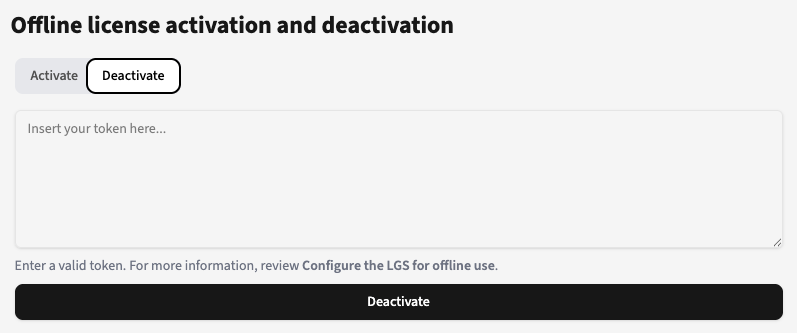
- Click Deactivate, and then click Continue.
- Copy the generated license deactivation token. If necessary, transfer it back to the machine running
ptl.
This method needs internet access on the machine running
ptl.- Deactivate the token online:
ptl deactivate "BATCH_DEACTIVATION_TOKEN"
- Replace
BATCH_DEACTIVATION_TOKENwith the token from the previous step. Thedeactivatecommand auto-detects batch tokens.
- Replace
- Copy the generated license deactivation token.
-
Import the deactivation across all LGS instances:
ptl batch-import-deactivation "LICENSE_DEACTIVATION_TOKEN"- Replace
LICENSE_DEACTIVATION_TOKENwith the token from the previous step.
- Replace
The license key is deactivated across all specified LGS instances.
Shortcut: deactivate-all
If the machine running ptl has internet access, use the deactivate-all command as a shortcut that combines the export, deactivate, and import steps:
ptl deactivate-all "LICENSE_KEY_VALUE" ENDPOINT_1 ENDPOINT_2
- Replace
LICENSE_KEY_VALUEwith your license key. - Replace
ENDPOINT_1 ENDPOINT_2with the addresses of your LGS instances. Omit the endpoint arguments to use stored endpoints.