Activate license keys offline
In full offline mode, you activate and deactivate license keys by exchanging tokens between the offline machine and the Pdftools Licensing Service. You exchange the tokens either in the Pdftools Portal or with the Pdftools Licensing Shell (ptl) on a machine with internet access.
The command depends on how you installed the LGS and the Pdftools Licensing Shell:
- Windows:
ptlon both machines. - Snap:
licgwy.ptlon the offline machine, andptlon the online machine. To useptlon the offline machine too, create an alias withsudo snap alias licgwy.ptl ptl. - DEB and RPM packages:
sudo ptlon the offline machine, andptlon the online machine. - Archive:
/opt/pdftools-lgs/current/ptlon the offline machine. For the online machine, refer to Use full offline mode.
The examples on this page use ptl.
Prerequisites
To use the license keys offline, fulfill the following prerequisites:
- Your license key supports full offline mode, as described in Before you start.
- The LGS is set up for offline use on a machine that is not connected to the internet (offline machine), as described in Set up full offline mode.
- Optional: The Pdftools Licensing Shell (
ptl) is installed on the machine that is connected to the internet (online machine). You need it only for the CLI method in the following procedures. To install it, refer to Install the Pdftools Licensing Shell on the online machine.
Activate a license key
To activate a license key in full offline mode:
-
On the offline machine with the installed Licensing Gateway Service, generate an offline activation token:
ptl export-activation "LICENSE_KEY_VALUE"- Replace
LICENSE_KEY_VALUEwith your license key.
- Replace
-
Copy the generated offline activation token, and transfer it to a machine with internet access.
-
Exchange the offline activation token for a license activation token:
- Pdftools Portal
- CLI
- Log in to the Pdftools Portal.
- Go to the Licenses tab.
- Paste the offline activation token into the field marked as Insert your token here….
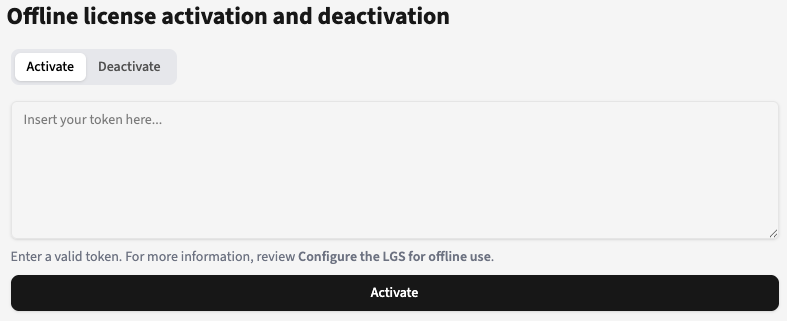
- Click Activate, and then click Continue.
On the online machine with the installed Pdftools Licensing Shell, activate the token:
ptl activate "OFFLINE_ACTIVATION_TOKEN"- Replace
OFFLINE_ACTIVATION_TOKENwith the offline activation token from the previous step.
-
Copy the generated license activation token, and transfer it to the offline machine.
-
On the offline machine, activate or extend the license key:
ptl import-activation "LICENSE_ACTIVATION_TOKEN"- Replace
LICENSE_ACTIVATION_TOKENwith your license activation token from the previous step.
- Replace
The license is activated or extended and ready for use.
When you activate a license key in the LGS, it’s linked to that machine. You can activate the same license key on up to 10 offline LGS machines without deactivating it first.
Deactivate a license key
Although you can activate a license key on up to 10 machines, deactivate the license key on machines you plan to retire. If a machine with an active license key becomes permanently inaccessible, the activation slot remains occupied. If all slots are used, contact Pdftools support to free an activation. Review the Support page.
To deactivate a license key in full offline mode:
-
On the offline machine with the installed LGS, locally deactivate the license key:
ptl export-deactivation "LICENSE_KEY_VALUE"- Replace
LICENSE_KEY_VALUEwith your license key. - You can’t generate a new activation request token for the same license key until you complete all deactivation steps.
- Replace
-
Copy the generated license deactivation request token, and transfer it to a machine with internet access.
-
Exchange the deactivation request token for a license deactivation token:
- Pdftools Portal
- CLI
- Log in to the Pdftools Portal.
- Go to the Licenses tab.
- Click Deactivate.
- Paste the license deactivation request token into the field marked as Insert your token here….
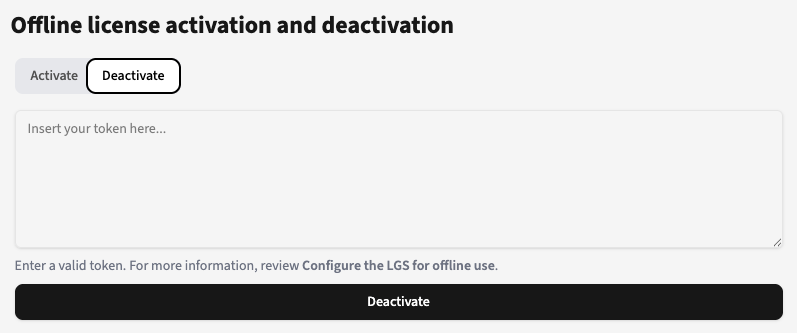
- Click Deactivate, and then click Continue.
On the online machine with the installed Pdftools Licensing Shell, deactivate the token:
ptl deactivate "OFFLINE_DEACTIVATION_TOKEN"- Replace
OFFLINE_DEACTIVATION_TOKENwith the token from the previous step.
-
Copy the generated license deactivation token, and transfer it to the offline machine.
-
On the offline machine, deactivate the license key:
ptl import-deactivation "LICENSE_DEACTIVATION_TOKEN"- Replace
LICENSE_DEACTIVATION_TOKENwith your license deactivation token from the previous step.
- Replace
The license is removed from the system. If necessary, you can generate a new activation request token for this license key.
Reactivate a license key
The activated license key is valid in the full offline mode for 365 days. Reactivate the license key to extend this period for another 365 days. The license expiration date is independent of this activation period. For example:
- Your license key expires in two years. You can reactivate the license key for full offline mode before or after the 365-day period expires. The reactivation resets the offline activation period to another 365 days.
- Your license key expires in six months. Your offline activation period is displayed as 365 days. Your license key stops working after 6 months, but the license key activation period still displays 182 days remaining.
You can reactivate your license at any time. Reactivation only resets the full offline mode activation period to 365 days. Reactivate the license key before the activation period expires to ensure uninterrupted use. If you reactivate after the activation period expires, the license stops working until you complete the reactivation.
To reactivate your license key, repeat the steps in Activate a license key.
If you activated the same license key on multiple offline LGS machines, reactivate it on each machine individually. Complete the reactivation before the 365-day activation period expires.