
How to fix your exception queue with document normalization
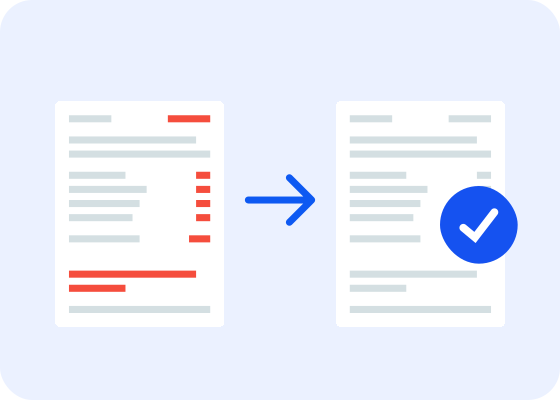
When documents start piling up in the exception queue, people often blame OCR or extraction errors. However, the root cause often appears earlier in the pipeline — and when it’s not addressed, efficiency suffers.
For example, Accenture estimates that up to 40% of insurance underwriters’ time is spent on non-core and administrative work, representing an industry-wide efficiency loss of up to $160 billion by 2027. That inefficiency has other knock-on costs, too: a full third of claimants said they weren’t fully satisfied with their most recent claims experience, which puts up to $170 billion in renewal premiums at risk.
So if the problem doesn’t start with extraction errors or issues with OCR, where does it start? Very often, it starts as soon as documents enter the system. When inbound documents are entered into the system without normalization, their internal structures don’t follow any specific template or format. OCR in particular tends to work very well with specific templates and formats of documents, but once it encounters something entirely unfamiliar, problems arise. And when claims documents can include scans, broker-generated PDFs, or documents sent via smartphone, there’s no guarantee their internal structures will be even remotely similar.
Without normalization at the point of entry, the issues persist and cause problems downstream, causing processing failures that result in manual exception queues. If you’re looking to reduce exception queues and create more efficiency (and consistency) in automated workflows, focusing on unstable inbound documents is the best place to start.
How unstable inbound documents result in larger exception queues
Insurance claims pipelines have to process large volumes of documents in a variety of formats and templates, coming from broker portals, customer uploads, email attachments, scanning systems, and other sources. These files might include image-based content, like photos of receipts, along with handwritten signatures, notes, or important images embedded into text-heavy documents. It’s also likely that at least a few of the files will contain layered OCR text, malformed objects, and/or inconsistent metadata.
When downstream systems attempt to process and extract the relevant information from documents that vary in visual form and backend content, they often fail. Then, because of the structural variability between the documents, you wind up dealing with extraction mismatches, validation failures, and processing errors. All the while, the queue of documents that need to be manually reviewed continues to grow, and costs along with it. One survey found that respondents with 100+ employees spent up to $850,000 annually on manual document processing.
How invisible differences cause PDF processing failures
How PDFs function and why they were created as a file type heavily factor into solving this problem. The primary goal of PDFs is to look the same on every device they’re opened on. As a result of this, while they look like text-heavy documents to us, they function more like a stack of independent content layers, including text, vector illustrations, images, metadata, annotations, and more. What we see as text in a PDF is, from the computer’s perspective, a series of individual glyphs that are drawn at specific locations on a specific page.
This issue can manifest in a variety of ways. Let’s say you have a digitally generated PDF with fillable text fields on it. User A doesn’t fill out the text fields on their computer, but instead prints it out, fills it out by hand, and scans it back in. Meanwhile, User B enters text in the fields on their computer and saves it. If you compare the two documents after they’ve been filled out, they’ll be visually the same, except for handwritten vs. typed answers. However, as far as internal structure goes, they’re completely different, because printing the document and scanning it removes all of the original metadata and internal structure. Because of those differences, during the extraction process, User B’s document could be processed flawlessly, while User A’s document caused issues.
Here are a few other examples of ways that internal document structure can cause issues:
Random line breaks are added, splitting up words and scrambling field values. Over-split lines occur when extraction or OCR results in multiple lines instead of just one line, despite it looking like one line on the screen. This is often caused by one letter being very slightly higher or lower than the letters next to it, resulting in the system inserting a line break where there shouldn’t be one. These issues require manual correction regardless, but can be especially tricky when they turn field values into something that is no longer machine-readable, like splitting a name across two extraction rows or adding a line break in the middle of a date.
Line breaks are deleted, resulting in unreadable text and merged data points that can’t be parsed correctly. This happens with under-split lines: lines merged when they should be on separate lines. This often occurs when the original document creator used spaces to modify text layout (for example, using spaces to line up items in a “table”). Removing these line breaks often takes data points that should be separated and merges them into one value that downstream systems won’t be able to read correctly, causing documents to fail validation and necessitating tedious manual correction.
Characters get dropped. This happens most often with ligatures, which are two or more letters joined into one glyph (for example, fi, fl, ff, ffi, and ffl). During extraction, ligatures are sometimes converted to Unicode strings or blank spaces.
Image-based content disappears. Image-based content is invisible to text extraction. If a document contains a photo of accident damage, a scanned handwritten claims form, a diagram, or anything else embedded as a raster image in a majority-text document, standard extraction will ignore it entirely. This also happens without any error message or warning to notify you, contributing to silent data loss that you might not catch until the document is several steps further down the pipeline.
Jumbled text is added. Due to how PDFs are structured, they can contain text that’s invisible to a human reader, but shows up after extraction. For example, processing a document through OCR creates an invisible text layer in the document. Other examples include white text on a white background, text that’s covered by images or graphic elements, text that’s positioned off the page, etc. Whatever the root cause is, these hidden text layers are both hard to detect and corrupt extracted output, rendering it unusable.
Using deterministic normalization to fix processing failures
If you’re looking to reduce exception queues and create more efficiency (and consistency) in automated workflows, deterministic normalization is the best path forward. The “deterministic” aspect is key, meaning that the same structural output is guaranteed, regardless of how the input document was created or transmitted. This kind of document normalization is how you transform inconsistent inbound documents (with different file types, visual layouts, etc.) into structurally stable documents before they enter downstream workflows, like OCR, extraction, or archiving. These processes prevent issues like the above scenario, where visually identical documents are processed differently, creating unpredictable failures and additional manual work.
Here’s what the normalization process looks like for someone using Pdftool’s Conversion Service:
Step one: Analysis
Conversion Service will evaluate whether the uploaded document is among the 62 file types we support. Unsupported file types abort conversion before any processing occurs. In addition to the automatic evaluation, the user can also configure which of the supported file types they want to process, and define what happens to the other types (reject the documents or pass them through, etc.).
Step two: Validate & repair / Convert to PDF
If the uploaded document is a PDF or PDF/A document, it’s validated for structural integrity. If any corruption in the file is detected, automatic repair is attempted. This is the first point where structural problems in inbound documents are caught and corrected.
If the uploaded document isn’t a PDF, it’s converted to PDF before further processing takes place. This puts all of the processed documents into a single format we have specific tooling for, and lets our core SDK handle the rest of the process.
Step three: OCR
This consists of two SDK operations:
Analyze: Image preprocessing (deskew, binarization, noise removal, and resolution correction) runs before text recognition begins. Then, pages containing image-based text are identified for processing, so that OCR only runs on pages/regions that require it.
Synthesize: The OCR engine processes the identified pages/regions. After processing, recognized text is embedded back into the PDF, aligned with the visual layout, which resolves any potential issues around hidden text layers and/or text embedded in images.
Step four: Optimize
During optimization, redundant data is removed, images are compressed, annotations are flattened, and fonts are merged and subset. Doing this before conversion to PDF/A serves a few purposes:
It gives PDF/A conversion a cleaner, smaller input to work with
Running optimization after PDF/A conversion could break conformance by removing metadata, font data, or other things required by PDF/A standards
Font merging is a prerequisite for conversion and ensures there aren’t duplicate font objects for the conversion engine to deal with
Optimization normalizes the PDF file and minimizes the file size, setting up the later conversion process for success.
Step five: Convert to PDF/A
This is where structural normalization happens. All existing documents will conform to PDF/A standards of whichever subtype the user chooses (i.e., PDF/A-1, -2, -3, or -4). Here are a few examples of what that looks like:
Non-conformant annotations (proprietary, 3D, etc.) are removed
JavaScript actions are stripped from interactive fields
For PDF/A-1 files, transparency is removed
Metadata is standardized
Any external dependencies are removed
After the normalization process, documents are merged or collected into a single output, depending on the user’s preferences.
The end result
After these steps, the resulting PDFs have the same internal structure. In cases where it’s not possible for a document to be produced to the exact standards (for example, PDF/A-2a), the system will move to the next best option, like PDF/A-2u. The documents being structurally similar means they will now perform the same when run through the rest of the document processing pipeline. There’s also an optional XML output for pipelines that require structured data extraction.
If you’re looking to improve your document normalization processes, check out our Conversion Service. It handles normalization, OCR, optimization, and PDF/A conversion in a deterministic pipeline. See the full technical documentation to understand how it can fit into your architecture and existing workflows.