Pdftools Portal
The Pdftools Portal lets you manage your licenses, account settings, users, and notification preferences. Sign up or log in to access the portal.
The portal sidebar provides access to the following sections:
- Products: An overview of your products and license keys.
- Licenses: Activate and deactivate license keys offline, and process legacy offline licensing files.
- Utilities and tools: Access additional tools and utilities.
- Support: Open support requests, access documentation resources, upload files for the support team, and contact your dedicated customer success manager.
The legacy customer portal is no longer available. Your assigned customer success manager sends quotes, invoices, and contracts directly through email. To find your customer success manager’s contact details, go to the Support tab in the Pdftools Portal. For any other questions, use the Contact page.
Products
The Products tab is the landing page of the portal and displays all your products in two categories:
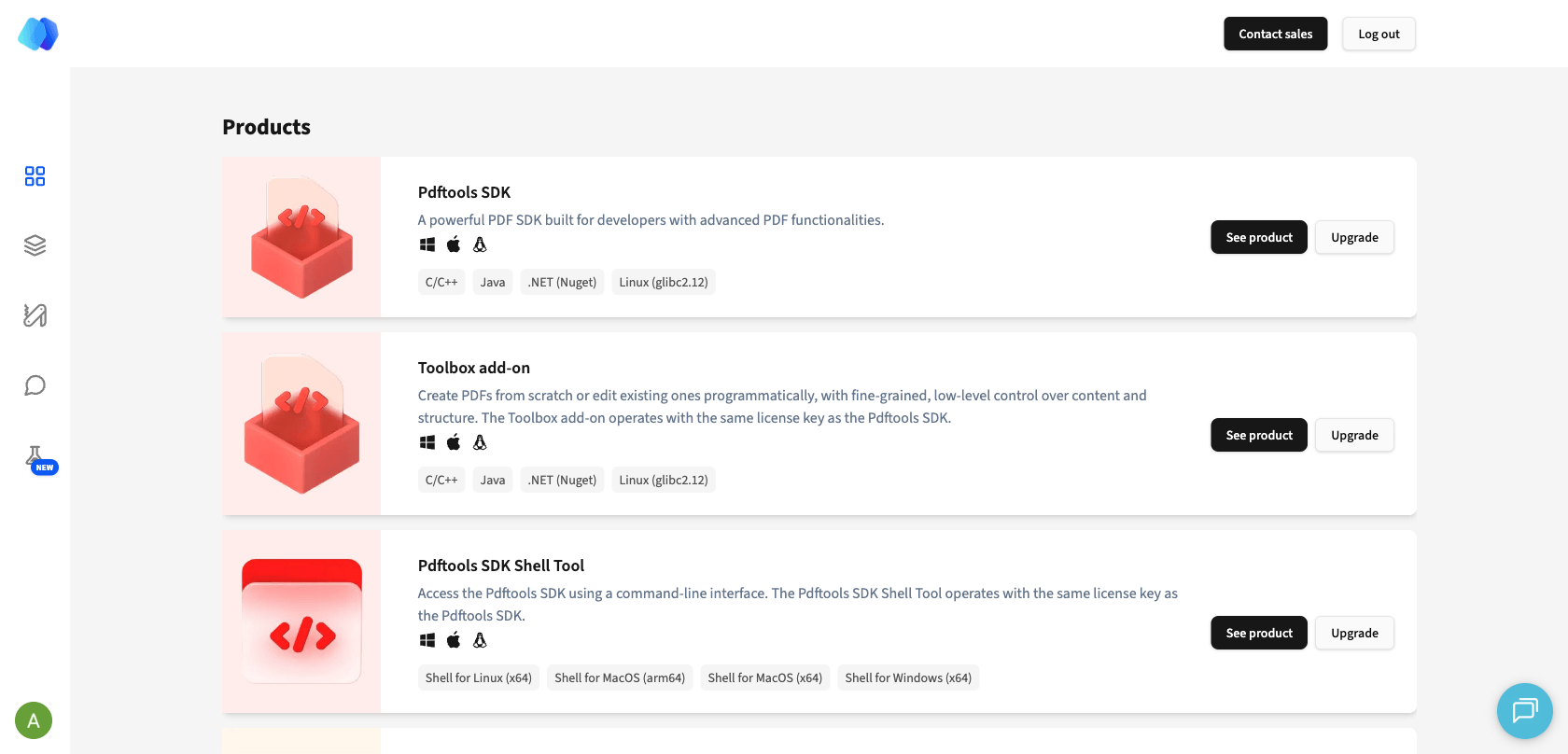
- Products: Your active Pdftools products (Pdftools SDK, Toolbox add-on, PDF Viewer SDK, Conversion Service, and others).
- Legacy Products: Products from the previous product line.
To view the license keys for a product, select See product. Each product page displays the following information for every license key:
- License key: The license key string. Select Click to copy to copy it to your clipboard.
- Status: Whether the license key is active.
- Maintenance End: The date your maintenance contract expires. Renew your contract before this date to maintain access to updates and support.
- Page Credits: The number of page credits used and the total allocation for that key. Some keys display Unlimited usage instead.
- Trial Period: For trial keys, the remaining trial days and a progress bar.
Each product page also includes a Product Builds section where you can download the product binaries. Select a version from the dropdown, filter by programming language or architecture, and select Download for the artifact you need. Some packages link to external repositories (NuGet, Maven Central, PyPI).
Licenses
The Licenses tab lets you activate and deactivate license keys for offline use, and process legacy offline licensing files.
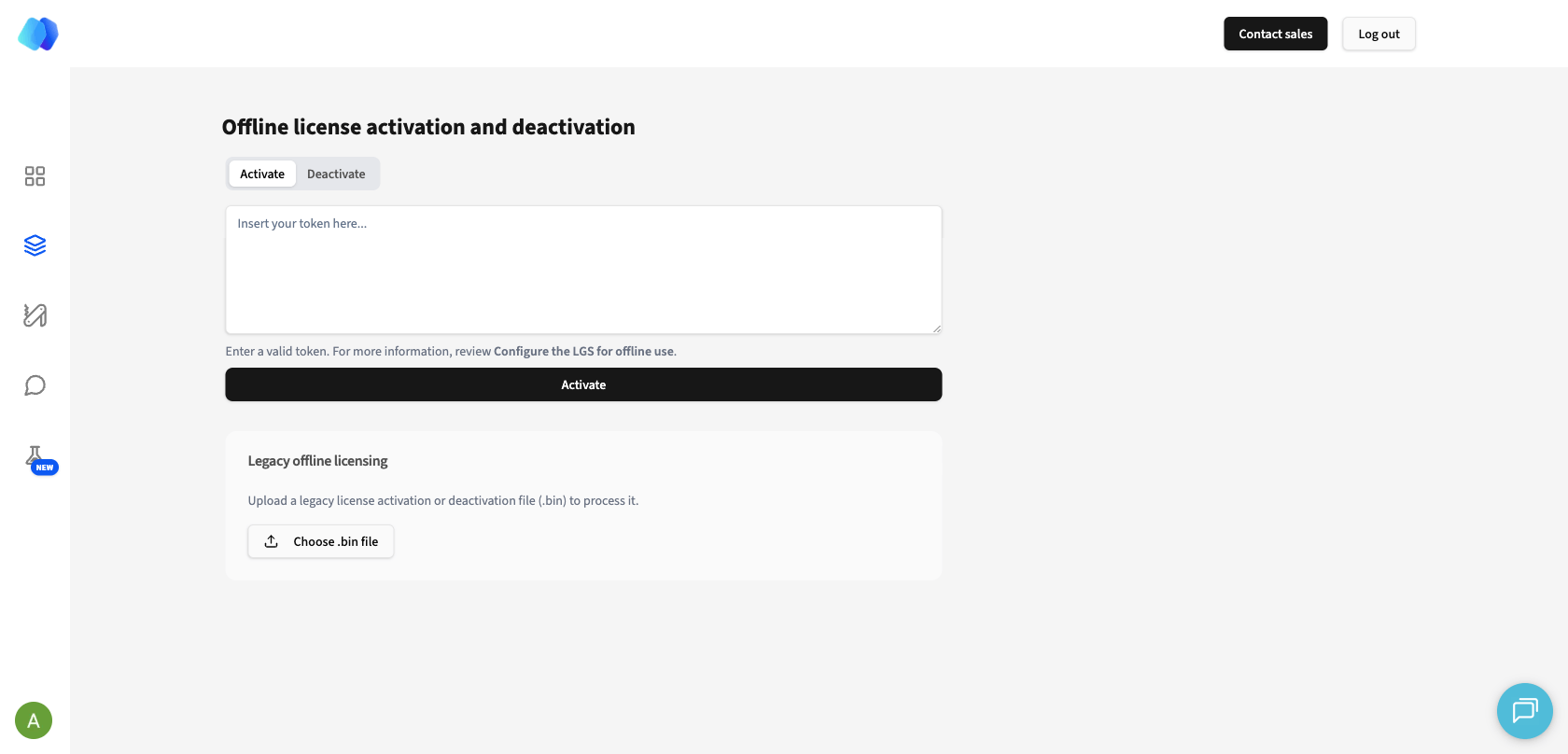
Offline license activation and deactivation
To activate a license key offline, go to Licenses, select the Activate tab, and paste the activation token into the text field. To deactivate, select the Deactivate tab.
For more information about generating activation tokens and configuring offline licensing, review Full offline mode.
Legacy offline licensing
Upload a legacy license activation or deactivation file (.bin) to process it. Select Choose .bin file and upload the file.
This feature is for customers who used the legacy offline licensing system before the migration to the Pdftools Portal. For more information about legacy licensing, review Legacy SDK product licensing.
Support
The Support tab lets you open support requests, access documentation resources, and contact your dedicated customer success manager. For details on how to open a support request, review Pdftools Technical Support.
Manage notifications
Notification settings let you control which users in your organization receive email notifications about licensing events, such as license key expiration reminders, renewal notices, and page credit consumption alerts.
To manage notification settings:
- Log in to the Pdftools Portal.
- Select the profile icon in the bottom-left corner of the sidebar.
- Select Notification Settings.
- In the Licensing Email Notifications section, use the toggle next to each user to turn on or turn off their email notifications.
- Select Save.
Manage users
The Users section lets you manage who has access to your organization’s account in the Pdftools Portal. Add team members so they can view license keys, manage products, and receive notifications.
To manage users:
- Log in to the Pdftools Portal.
- Select the profile icon in the bottom-left corner of the sidebar.
- Select Account Settings.
- Under Workspace, select Users.
From this page, you can:
- Invite a user: Select Invite User and enter the email address of the person you want to add.
- Search users: Use the search field to find users by email.
- View user details: The table displays each user’s full name, email, role, and status.
- Manage user options: Select the options icon next to a user to view available actions.