Set up Pdftools OCR Service with Pdftools SDK
Install the Pdftools OCR Service on Windows, and then use the Pdftools SDK to apply OCR to a PDF through the running service.
Get a license key
To try or buy the Pdftools OCR Service, follow these steps:
- Fill in the Pdftools contact form and mention that you want to evaluate or use the Pdftools OCR Service.
- After you receive confirmation, sign up or log in to the Pdftools Portal.
- Click See product next to the Pdftools OCR Service, download the MSI installer, and copy your license key.
Install Pdftools OCR Service
To install the Pdftools OCR Service, follow these steps:
- Log in to the Pdftools Portal.
- Go to the Products, find the Pdftools OCR Service, and then click Get started or See product.
- In the Product builds section, find the
ocr-service-VERSION_NUMBER.msipackage, and then click Download . - Follow the instructions in the installer.
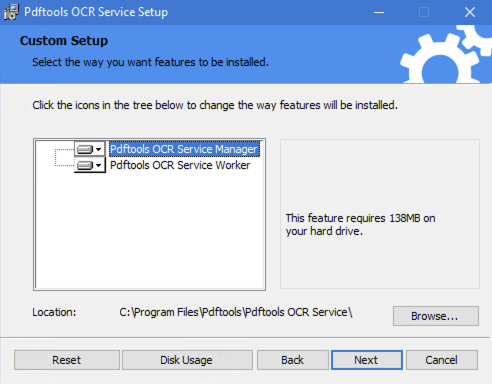
- In the Pdftools Portal, on the Products page, next to the Pdftools OCR Service, click Get started or See product.
- Next to the Pdftools OCR Service license key, click Click to copy .
- Go to the installation folder of your worker nodes and open the
appsettings.json. Full path example:C:\Program Files\Pdftools\Pdftools OCR Service\PdftoolsOcrWorker\appsettings.json - Replace the
"<LICENSE_KEY>"placeholder with your license key, and then save the file.tipIn its default configuration, the Pdftools OCR Service requires a network connection to validate the license key. For information about a partially offline or a fully offline solution, review Pdftools OCR Service licensing.
- Open the Windows start menu and search for Services, and then search for Pdftools OCR Service Worker. Right-click the entry and click Start to start the service.
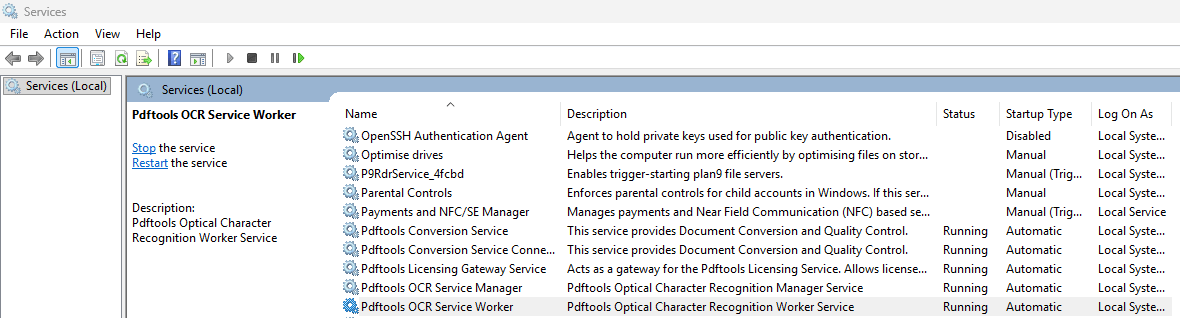
- Optional: Check the log files to verify that the installation succeeded. Example path to the
worker-logYYYYMMDD.txtfile:An entry similar to the following at the end of the log file indicates a successful installation:C:\ProgramData\Pdftools\OcrService\logs\worker-log20251007.txt2026-04-15 15:07:04.561 +02:00 [Information] Application started. Hosting environment: "Production"; Content root path: "C:\Program Files\Pdftools\Pdftools OCR Service\PdftoolsOcrWorker"
To replace a trial license key or insert a different key, repeat the procedure from step 7.
Run the OcrDocument sample
With the Pdftools OCR Service running, use the Pdftools SDK to apply OCR to a PDF. The OcrDocument sample takes four arguments:
OCR_ENGINE_NAME LANGUAGE INPUT_PATH OUTPUT_PATH
OCR_ENGINE_NAME: Set toserviceto route OCR through the Pdftools OCR Service.LANGUAGE: The OCR recognition language, for example,English. For more options, review Supported languages.INPUT_PATH: Path to the PDF to apply OCR to.OUTPUT_PATH: Path to the generated PDF.
Each OcrDocument sample repository includes a test file named InvoiceNone.pdf that you can use to verify your setup.
C#
Prerequisites: .NET 8 SDK.
-
Clone the sdk-examples-csharp repository:
git clone https://github.com/pdf-tools/sdk-examples-csharp.git -
Navigate to the
OcrDocumentsample:cd sdk-examples-csharp/OcrDocument -
Apply OCR to the included test file
InvoiceNone.pdf:dotnet run --framework net8.0 --project PdfToolsOcrDocument.csproj service English InvoiceNone.pdf InvoiceOcr.pdf
Compare the command with placeholders:
dotnet run --framework net8.0 --project PdfToolsOcrDocument.csproj OCR_ENGINE_NAME LANGUAGE INPUT_PATH OUTPUT_PATH
Java
Prerequisites: Java Development Kit (JDK) 8 or later.
Switch between the following tabs to display steps for Maven, Gradle, or Manual build.
- Maven
- Gradle
- Manual
-
Clone the sdk-examples-java repository:
git clone https://github.com/pdf-tools/sdk-examples-java.git -
Navigate to the
OcrDocumentsample:cd sdk-examples-java/OcrDocument -
Build the project and apply OCR to the included test file
InvoiceNone.pdf:mvn clean installmvn exec:java '-Dexec.mainClass=PdfToolsOcrDocument.PdfToolsOcrDocument' '-Dexec.args=service English InvoiceNone.pdf InvoiceOcr.pdf'noteWrap both
-Darguments in single quotes. PowerShell passes the arguments literally this way; double quotes are re-interpreted by PowerShell and the command fails. The single-quote form also works in Bash and zsh.
Compare the command with placeholders:
mvn exec:java '-Dexec.mainClass=PdfToolsOcrDocument.PdfToolsOcrDocument' '-Dexec.args=OCR_ENGINE_NAME LANGUAGE INPUT_PATH OUTPUT_PATH'
The sample doesn’t ship a Gradle wrapper, so install Gradle locally or generate a wrapper with gradle wrapper.
-
Clone the sdk-examples-java repository:
git clone https://github.com/pdf-tools/sdk-examples-java.git -
Navigate to the
OcrDocumentsample:cd sdk-examples-java/OcrDocument -
Build the project and apply OCR to the included test file
InvoiceNone.pdf:gradle buildgradle run --args="service English C:\INPUT_DIR\InvoiceNone.pdf C:\OUTPUT_DIR\InvoiceOcr.pdf"Replace the following placeholders with specific values:
C:\INPUT_DIR: Absolute path to the folder containing your input PDF. For the sample verification, use the folder where you clonedsdk-examples-java/OcrDocument.C:\OUTPUT_DIR: Absolute path to the folder where the generated PDF should be written.
noteUse absolute paths for the input and output files.
gradle runsets the working directory to the subproject folder (lib/), so relative paths resolve there rather than where you invoked Gradle.
Compare the command with placeholders:
gradle run --args="OCR_ENGINE_NAME LANGUAGE INPUT_PATH OUTPUT_PATH"
-
Clone the sdk-examples-java repository:
git clone https://github.com/pdf-tools/sdk-examples-java.git -
Navigate to the
OcrDocumentsample:cd sdk-examples-java/OcrDocument -
Download
pdftools-sdk-1.16.0.jarandpdftools-sdk-native-1.16.0.jarfrom Maven Central. Save both JARs into any folder. The following commands refer to that folder asC:\JAR_DIR. -
Compile the sample:
javac -cp "C:\JAR_DIR\pdftools-sdk-1.16.0.jar" -d out lib/src/main/java/PdfToolsOcrDocument/PdfToolsOcrDocument.javaReplace
C:\JAR_DIRwith the absolute path to the folder where you saved the two JAR files. -
Apply OCR to the included test file
InvoiceNone.pdf:java -cp "out;C:\JAR_DIR\pdftools-sdk-1.16.0.jar;C:\JAR_DIR\pdftools-sdk-native-1.16.0.jar" PdfToolsOcrDocument.PdfToolsOcrDocument service English InvoiceNone.pdf InvoiceOcr.pdfReplace
C:\JAR_DIRin both classpath entries with the same folder path you used for the compile step.noteOn macOS or Linux, use
:instead of;as the classpath separator.
Compare the command with placeholders:
java -cp "out;C:\JAR_DIR\pdftools-sdk-1.16.0.jar;C:\JAR_DIR\pdftools-sdk-native-1.16.0.jar" PdfToolsOcrDocument.PdfToolsOcrDocument OCR_ENGINE_NAME LANGUAGE INPUT_PATH OUTPUT_PATH
Python
Prerequisites: Python 3.7 or later.
-
Clone the sdk-examples-python repository:
git clone https://github.com/pdf-tools/sdk-examples-python.git -
Navigate to the
OcrDocumentsample:cd sdk-examples-python/OcrDocument -
Install the Pdftools SDK package:
pip install pdftools_sdk -
Apply OCR to the included test file
InvoiceNone.pdf:python ./ocr_document.py service English InvoiceNone.pdf InvoiceOcr.pdfnoteOn systems where only Python 3 is installed and
pythonisn’t aliased, runpython3instead.
Compare the command with placeholders:
python ./ocr_document.py OCR_ENGINE_NAME LANGUAGE INPUT_PATH OUTPUT_PATH
Learn more
For deeper OCR guidance with Pdftools SDK, including how to OCR documents programmatically and OCR best practices, review Pdftools SDK OCR guides, in Pdftools SDK documentation.