Get started with OCR in the Conversion Service
Learn how to install and configure the Pdftools OCR Service with the Conversion Service.
Install Pdftools OCR Service
To install the Pdftools OCR Service, follow these steps:
- Log in to the Pdftools Portal.
- Go to the Products, find the Pdftools OCR Service, and then click Get started or See product.
- In the Product kits section, find the
PdftoolsOcrService-VERSION_NUMBER.msipackage, and then click Download . The exact filename depends on the version you are installing. - Follow the instructions in the installer.
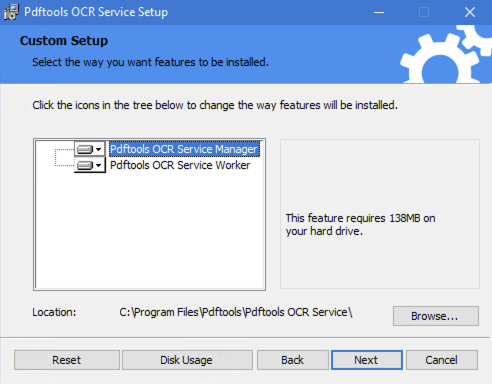
- In the Pdftools Portal, on the Products page, next to the Pdftools OCR Service, click Get started or See product.
- Next to the Pdftools OCR Service license key, click Click to copy .
- Go to the installation folder of your worker nodes and open the
appsettings.json. Full path example:C:\Program Files\Pdftools\Pdftools OCR Service\PdftoolsOcrWorker\appsettings.json - Replace the
"<LICENSE_KEY>"placeholder with your license key, and then save the file.tipIn its default configuration, the Pdftools OCR Service requires a network connection to validate the license key. For information about partially offline or fully offline solution, review Pdftools OCR Service licensing.
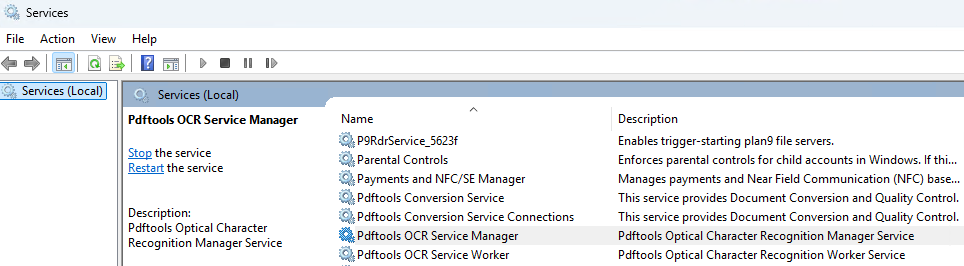
- Open Windows start menu and search for Services, and then search for Pdftools OCR Service Worker and start the service.
- Optional: Check whether the installation succeeded through log files. Example path to
worker-logYYYYMMDD.txtfile:C:\ProgramData\Pdftools\OcrService\logs\worker-log20251007.txt
If you need to remove a trial license key or in general insert another key, repeat the procedure from step 7.
The Pdftools OCR Service can be installed on Windows Server and Windows machines. Support for Docker and Linux is on our roadmap.
Set up Pdftools OCR Service with Conversion Service
Learn how to enable and configure the Pdftools OCR Service in the Conversion Service.
- Install and configure the Conversion Service. For detailed instructions, review Get started with the Conversion Service.
Enable Pdftools OCR Service in the Conversion Service
The following steps explain how to enable and configure OCR in the Conversion Service profile:
- In the Conversion Service Configurator, go to Workflows & Profiles.
- Click the pen icon next to the workflow profile you want to edit. The OCR is available in Archive and Conversion workflows.
- Enable the OCR Settings toggle.
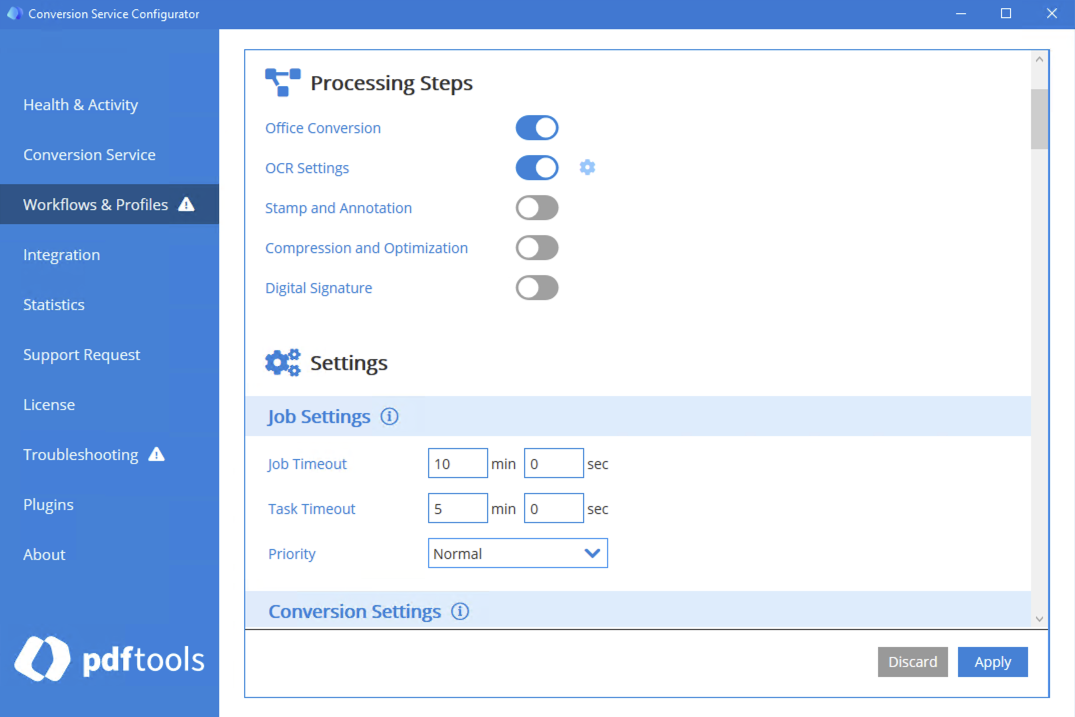
- Navigate to the now displayed OCR Settings configuration section.
- In the OCR Settings section, click the Add Item button.
- Select Pdftools OCR Service (3H Legacy Compatible) as the OCR engine, and then click Next.
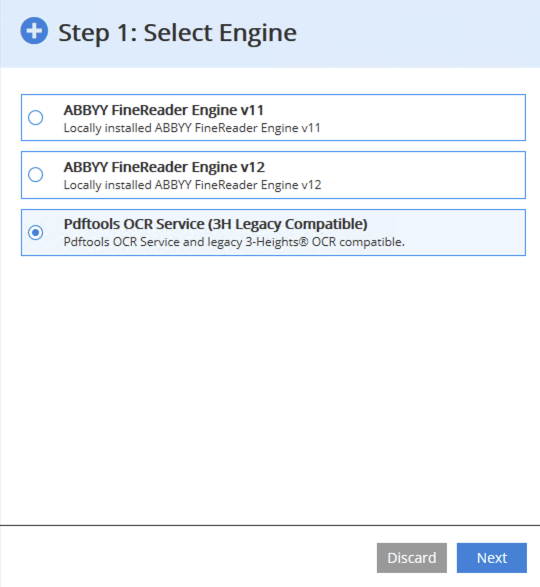
- Optional: If the OCR service is on a different server, update the Service URL.
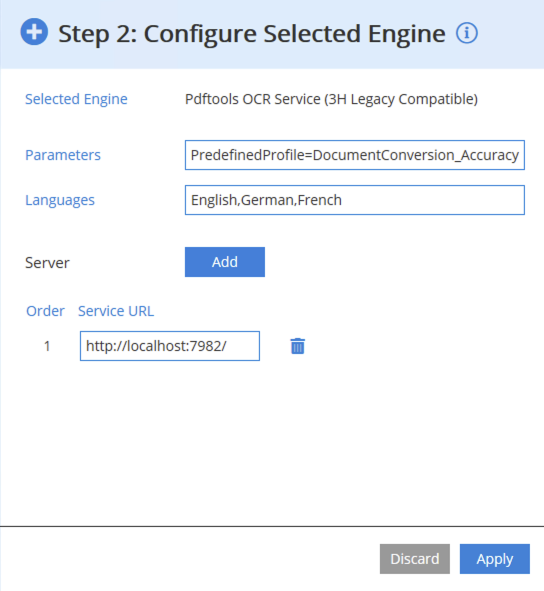
- Click Apply.
The Pdftools OCR Service must be configured and accessible through HTTP. You can configure Pdftools OCR Services to distribute the OCR processing equally. For more details, review Scale the Pdftools OCR Service.
Configure OCR in the Conversion Service
You can configure parameters such as languages that the OCR identifies in the documents, predefined profiles, accuracy of text extraction, and many more. To edit the configuration, follow these steps:
- In the Conversion Service Configurator, go to Workflows & Profiles.
- Click the pen icon next to the workflow profile you want to edit.
- Navigate to the OCR Settings section.
- Next to Engine, click the pen icon in the Pdftools OCR Service (3H Legacy Compatible) section.
- After editing your configuration, click Apply.
You can edit parameters in the Parameters and Languages input fields:
- In the Parameters input field, the key-value pairs are joined by an equal sign and separated by semicolons (
;). For more information about available parameters, review Parameters.- The default parameter set in the Conversion Service Configurator:
PredefinedProfile=DocumentConversion_Accuracy - An example of more parameters set in the Conversion Service Configurator:
PredefinedProfile=DocumentArchiving_Accuracy;PreprocessingOnly=false;RemoveGarbage=0;RecognizeBlankPages=false;BlankPageMargin=0.02;DisableMaskEmbedding=false
- The default parameter set in the Conversion Service Configurator:
- In the Languages input field, you can set the languages that the OCR recognizes as one comma-separated string. For more information about available language recognition options, review Supported languages.
- Default OCR language configuration in the Conversion Service Configurator:
English,German,French - An example of more natural and technical languages separated by commas:
English,German,French,Tagalog,Corsican,Spanish,Chemistry,Java
- Default OCR language configuration in the Conversion Service Configurator:
For more information about specific configuration options, review Pdftools OCR Service references