Custom profiles
A custom profile is an INI-format configuration file that lets you adjust parameters for image preprocessing, page analysis, text recognition, and document synthesis. Custom profile settings take precedence over predefined profile settings.
The following code is an example of a custom profile INI configuration file:
[PagePreprocessingParams]
DiscardColorImage = false
[RecognizerParams]
Mode = RM_Accurate
TextLanguage = English,German
To configure a custom profile for specific OCR processing behavior, follow these steps:
- Create a custom profile INI file.
- In the Conversion Service Configurator, go to Workflows & Profiles.
- Click the pen icon next to the workflow profile you want to edit.
- Navigate to the OCR Settings section.
- Next to Engine, click the pen icon in the Pdftools OCR Service (3H Legacy Compatible) section.
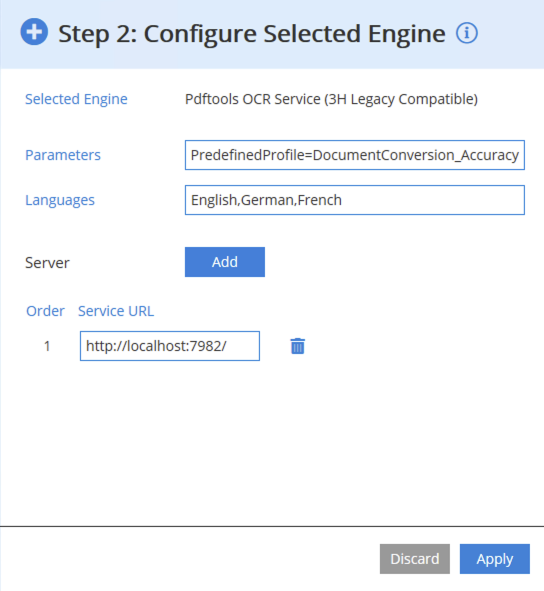
- In the Parameters input field, include a path to your INI file, for example:
Profile="C:\ocr\profiles\document_conversion_high_accuracy.ini" - After editing your configuration, click Apply.
The INI file must be on the same machine as the Pdftools OCR Service Manager node. If both Profile and PredefinedProfile are set, the custom Profile overrides the predefined profile.
Profile file format
Custom profiles use the INI format. Each section is identified by a name in square brackets and contains key-value pairs that configure a specific aspect of OCR processing. You can add comments by starting a line with a semicolon (;).
Property values use the following formats:
- Boolean:
trueorfalse - Enum: The constant name (for example,
RM_Accurate) - String: The value without quotes
Profile file structure
A profile consists of multiple sections, such as:
[PrepareImageMode][PagePreprocessingParams][DocumentProcessingParams][RecognizerParams][SynthesisParamsForPage]
Each section contains key-value pairs that configure a particular aspect of OCR processing. For the full list of available sections, refer to Key INI file sections and their purpose.
How profiles are used
- To use a custom profile, pass the path to the
Profileparameter. - If you set both
ProfileandPredefinedProfile, the custom profile’s values take precedence for any overlapping parameters. - Pdftools OCR Service validates the profile when processing begins.
The profile file must exist on a path reachable by Pdftools OCR Service Manager. If Pdftools OCR Service can’t find the file or the file contains syntax errors, it returns an error.
Tips for writing effective profiles
- Always verify your INI file encoding (UTF-8 without BOM).
- Build incrementally: start with minimal settings, then add new sections one at a time.
- Don’t turn on modules you don’t need. For example,
DetectBarcodesunless required. - Use language combinations carefully. More languages increase processing time.
- Prefer 300 DPI images for optimal OCR accuracy.
Key INI file sections and their purpose
The following table includes links to the references of specific INI file sections:
| INI file section | Description |
|---|---|
[PrepareImageMode] | Configure image preparation: compression, document type, image source type, and annotations. |
[ImageProcessingParams] | Adjust rotation, mirroring, and color inversion for image blocks. |
[DocumentProcessingParams] | Control whether document synthesis runs. |
[PageProcessingParams] | Configure preprocessing, layout analysis, and recognition. |
[PagePreprocessingParams] | Set options for correcting orientation, skew, geometry, resolution, binarization, and cropping. |
[PageAnalysisParams] | Control layout analysis: detect tables, images, barcodes, and structures. |
[TableAnalysisParams] | Configure table structure analysis and interpretation. |
[TextLayerInjectionParams] | Tune parameters for creating a searchable PDF with text layer injection. |
[BarcodeParams] | Detect, decode, and configure interpretation of barcode types. |
[ObjectsExtractionParams] | Manage object extraction, noise cleanup, and embedded text detection. |
[RecognizerParams] | Define OCR language, text types, recognition speed, and fine-tuning. |
[SortingBlocksParams] | Set parameters for combining blocks of data into groups. |
[SynthesisParamsForPage] | Configure page-level layout synthesis and formatting detection. |
[SynthesisParamsForDocument] | Manage document-level synthesis, structure, formatting, and memory usage. |
[DocumentStructureDetectionParams] | Configure document structure detection: headlines, footnotes, table of contents, and columns. |
[FontFormattingDetectionParams] | Detect bold, italic, font size, spacing, and other typographic features. |