OCR Service in Docker
Learn how to run the Pdftools OCR Service in Docker.
Prerequisites
- You have Docker Compose installed to run the Pdftools OCR Service in Docker.
- You have a valid Pdftools OCR Service license key. Log in to the Pdftools Portal to retrieve your license key.
Run Pdftools OCR Service in Docker
Pdftools OCR Service consists of two containers: the Manager and the Worker. You need both for a functional deployment.
To run the Pdftools OCR Service in Docker, follow these steps:
- Create a file named
docker-compose.yamland insert the following code:Replace the following placeholders with specific values:services:
manager:
image: pdftoolsag/ocr-service-manager:IMAGE_VERSION
ports:
- "7982:8080"
environment:
- ServiceCommunication__ServiceCommunicationType=Rest
- ServiceCommunication__ConnectionString=http://worker:8080
- PortNumber=8080
volumes:
- pdftools-data:/var/lib/pdftools
- pdftools-db:/usr/share/Pdftools
- pdftools-logs:/var/log/pdftools
worker:
image: pdftoolsag/ocr-service-worker:IMAGE_VERSION
shm_size: "2gb"
ports:
- "7998:8080"
environment:
- Licensing__LicenseKey=LICENSE_KEY_VALUE
- PortNumber=8080
volumes:
- pdftools-data:/var/lib/pdftools
- pdftools-logs:/var/log/pdftools
volumes:
pdftools-data:
pdftools-db:
pdftools-logs:IMAGE_VERSION: The Pdftools OCR Service version number. For example:1.1.0,1.1,1LICENSE_KEY_VALUE: Pass the license key value. Use the license key in the same format as you copied it. Include the less-than (<) and greater-than (>) signs.
- In the directory where you created the
docker-compose.yaml, run the following command:docker compose up -d - Verify both containers are running:
docker compose ps - Check that the worker has loaded the OCR engine successfully:
Look for the message Engine loaded in the log output to confirm the OCR engine is ready.
docker compose logs worker
In its default configuration, the Pdftools OCR Service requires a network connection to validate the license key. For information about partially offline or fully offline solutions, review Pdftools OCR Service licensing.
Environment variables
Learn about additional configuration of the Pdftools OCR Service Docker containers. Use the variables in the environment section of worker and manager nodes in the docker-compose.yaml.
Manager environment variables
| Variable | Default value | Description |
|---|---|---|
ServiceCommunication__ServiceCommunicationType | Rest | Communication protocol with the worker |
ServiceCommunication__ConnectionString | — | Worker connection string (for example, http://worker:8080) |
Database__DatabaseType | SqlLite | Database backend (SqlLite, PostgreSql) |
Database__DeleteJobsAfterDays | 2 | Days before completed jobs are automatically deleted |
FileStorage__FileStorageType | HostFileSystem | Storage backend (HostFileSystem, MinIO) |
FileStorage__FilesDirectoryPath | /var/lib/pdftools/files | Path for file storage |
FileStorage__DeleteFilesAfterDays | 2 | Days before files are automatically deleted |
MaxRequestBodySizeBytes | 104857600 | Maximum upload size in bytes (default 100 MB) |
PortNumber | 8080 | Internal listening port |
LogFilePath | /var/log/pdftools/manager-log.txt | Log file location |
LogRetentionDays | 7 | Number of days to retain log files |
Worker environment variables
| Variable | Default value | Description |
|---|---|---|
Licensing__LicenseKey | — | Required. Your Pdftools OCR license key |
Licensing__LgsURL | — | License Gateway Service URL for offline licensing |
FileStorage__FileStorageType | HostFileSystem | Storage backend (HostFileSystem, MinIO) |
FileStorage__FilesDirectoryPath | /var/lib/pdftools/files | Path for file storage |
ServiceCommunication__ServiceCommunicationType | Rest | Communication protocol with the manager (Rest, RabbitMQ, PostgreSql) |
PortNumber | 8080 | Internal listening port |
LogFilePath | /var/log/pdftools/worker-log.txt | Log file location |
LogRetentionDays | 7 | Number of days to retain log files |
The worker requires at least 2 GB of shared memory (shm_size: "2gb") for the OCR engine.
Set up Pdftools OCR Service with Conversion Service
Configure an OCR-enabled Conversion Service profile to use Pdftools OCR Service for text recognition. If you run Conversion Service on Windows, the profile takes effect immediately after you apply it. If you run Conversion Service in Docker, you also need to export the profile and import it into the Docker container.
Configure an OCR profile
Before you begin:
- You have a Windows machine with Conversion Service installed. This machine doesn’t need to be your production environment.
To enable OCR in a Conversion Service profile:
-
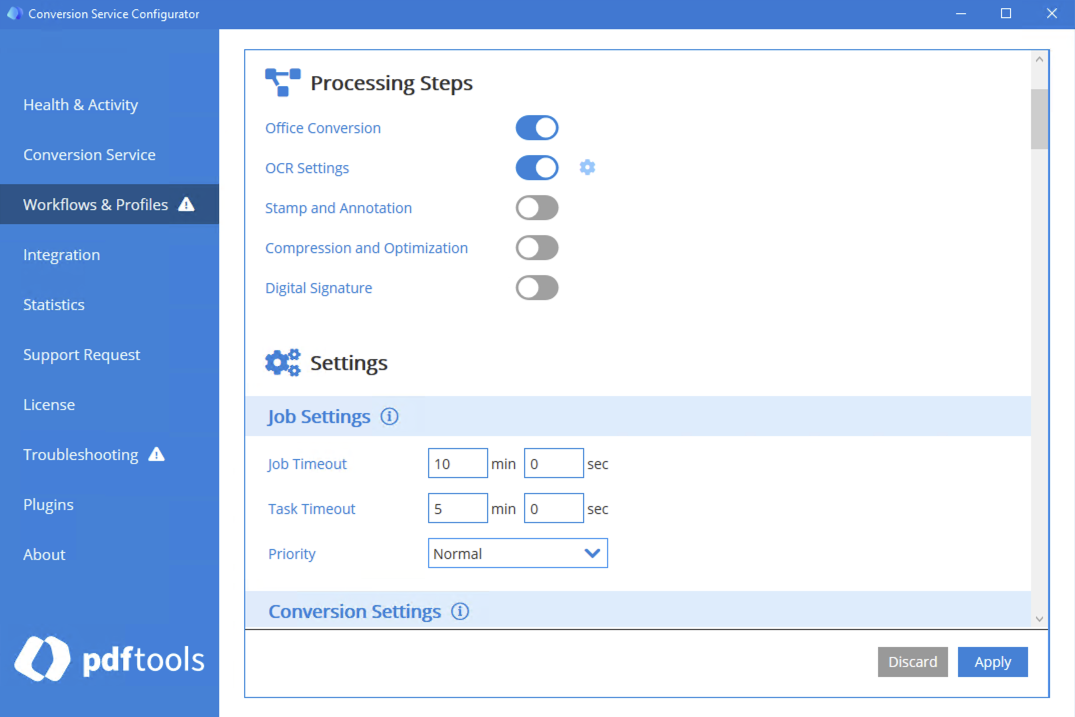
In the Conversion Service Configurator, go to Workflows & Profiles.
-
Click the pen icon next to the workflow profile you want to edit. OCR is available in Archive and Conversion workflows.
-
Enable the OCR Settings toggle.
-
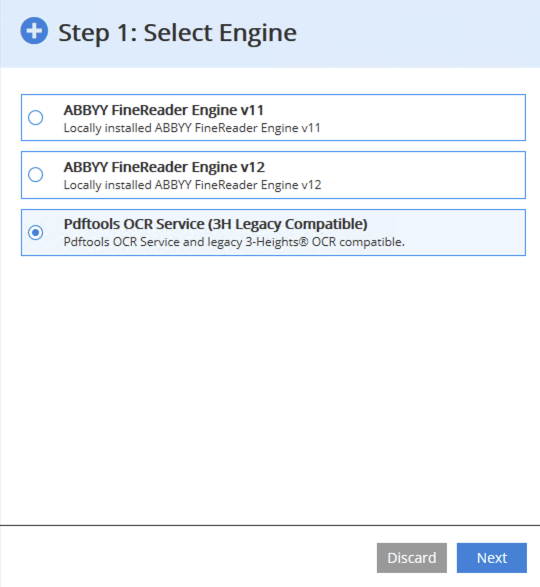
In the OCR Settings section, click Add Item.
-
Select Pdftools OCR Service (3H Legacy Compatible) as the OCR engine, and then click Next.
-
Optional: If Pdftools OCR Service runs on a different host, update the Service URL to point to your Pdftools OCR Service instance (for example,
http://OCR_MANAGER_HOST:7982).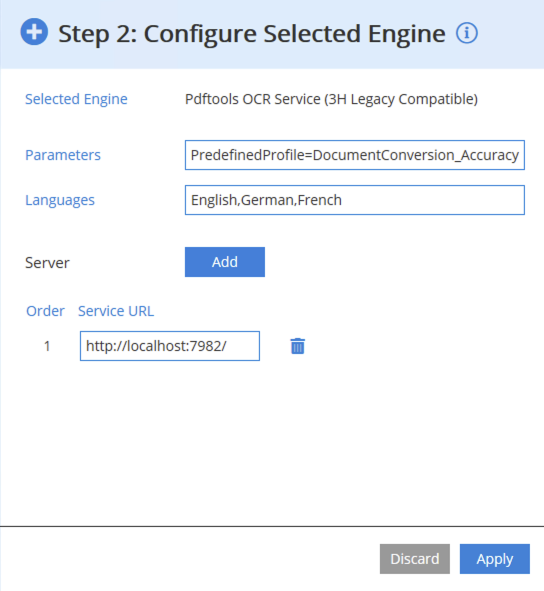 tip
tipIf Conversion Service also runs in Docker,
localhostdoesn’t resolve to the host machine. Refer to Docker networking for alternatives. -
Click Apply.
For advanced settings such as recognition languages and predefined profiles, refer to Configure OCR in the Conversion Service.
Docker networking
The default Service URL http://localhost:7982 works when Conversion Service runs directly on the host machine. When Conversion Service also runs in Docker, localhost resolves to the Conversion Service container itself, not the host. Use one of the following approaches depending on your setup:
- Same Docker Compose file: Add the OCR Service containers to the same
docker-compose.yamlas Conversion Service and use the Manager’s service name as the hostname (for example,http://manager:8080). Docker Compose creates a shared network automatically. Use the internal port (8080), not the published host port (7982). - Separate Docker Compose files: Create a shared Docker network and attach both Compose projects to it. Then reference the Manager by its service name.
- Host networking (Docker Desktop on Windows and macOS): Use
http://host.docker.internal:7982to reach the OCR Manager through the host’s published port.
Export the profile
If you run Conversion Service in Docker, export the configured profile so you can import it into the Docker container:
- In the Configurator, click Save & Restart Service.
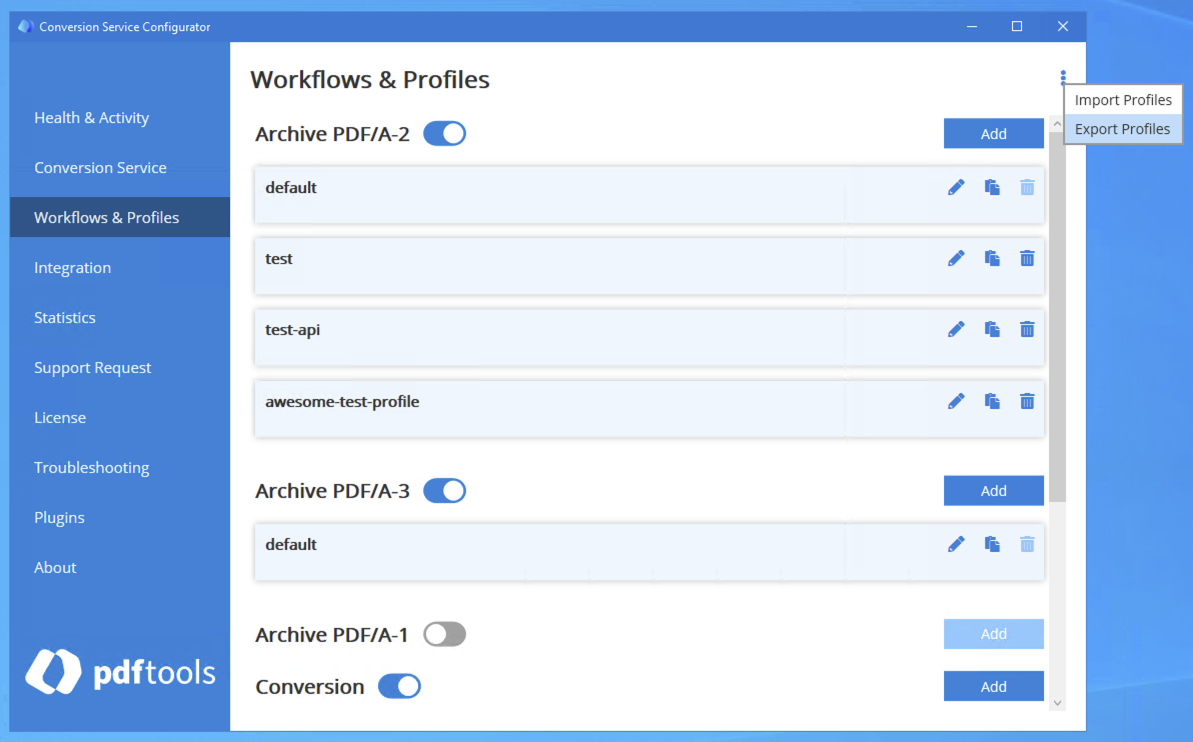
- On the Workflows & Profiles page, click the vertical three-dot menu, and then click Export Profiles.
- Select the profile you want to export, or click Select All to export all profiles.
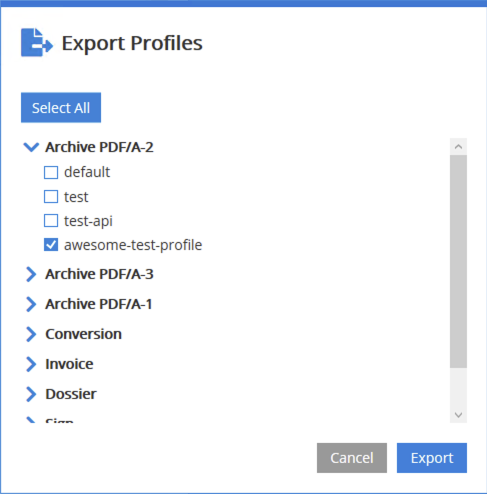
- Click Export, and then select the file destination.
Run Conversion Service in Docker
To set up Conversion Service as a Docker container, refer to Configure containers using Docker Compose.
Import the profile into Docker Compose
To import the exported profile into the Conversion Service Docker container, refer to Import profiles using Docker Compose.